Tags are custom designations that allow you to additionally label orders and trips for easy filtering and searching of data in the system.
The Tags directory is end-to-end and is used by:
- in the order creation and editing form;
- in the form of creating and editing a trips.
You can add multiple tags to a single order or trip at once.
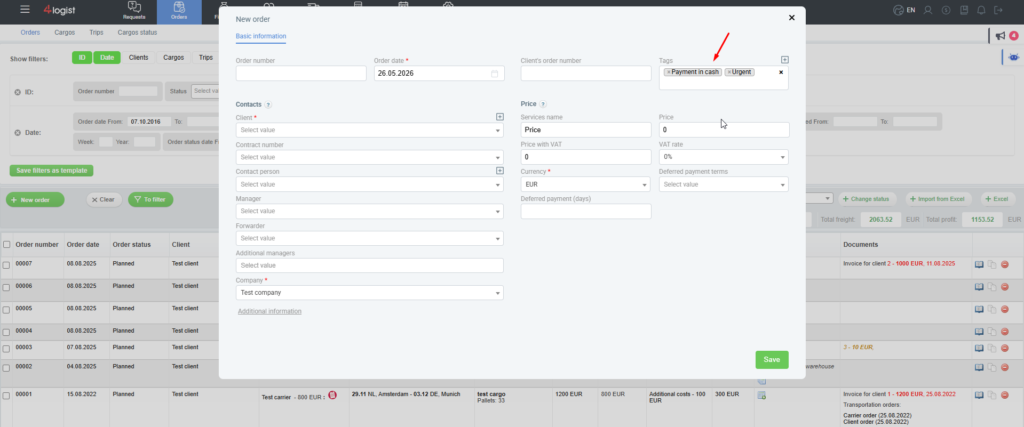
Tags help:
- group orders and flights by internal criteria;
- quickly find the necessary data through filters;
- highlight priority, problematic, or special transportation options;
- organize your own designation system within the company.
Examples of using tags:
- Payment in cash
- Urgent
- Problem client
- Payment control
- Import
- Regular customer
Features of working with tags
The tag directory is shared across the entire system.
This means that the same tags are available in both orders and trips.
You can add new tags:
- directly from the order form;
- directly from the trip form;
- through classifiers.
To add new values to the classifiers, the user must have the following permission::
- ‘Editing classifiers’.
Managing a list of tags
To view and edit the full list of tags, go to:
Settings → classifiers → Tags
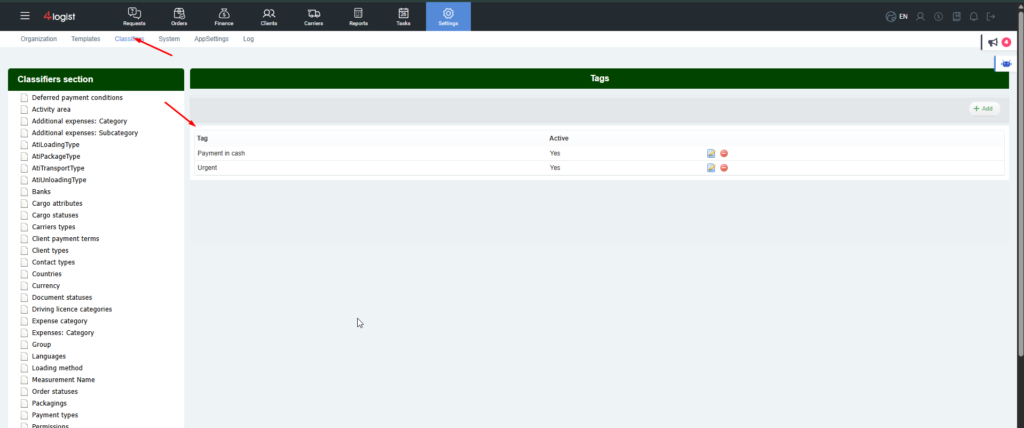
In this section, you can:
- add new tags;
- edit existing ones;
- deactivate unused values.
Deactivated tags are not removed from old orders and trips, but they are not available for selection in new documents.
Recommendations for use
We recommend using a single tag naming system within the company. This will allow:
- avoid duplicate symbols;
- simplify filtering;
- maintain a unified approach to working with orders and trips.
For example, instead of using tags at the same time:
- ‘Urgent’
- ‘Urgent.’
- «URGENT»
it is better to use one approved option.
Was this helpful?
0 / 0