The Import invoices section is designed to automate the process of incoming invoices from counterparties. This functionality allows you to upload invoices in PDF format, recognize them using the built-in service, check the correctness of data, and link invoices to existing expenses in the system.
The main goal of the function is to reduce manual labor of accountants and employees working with primary documentation, as well as to reduce the number of errors when entering data.
Available on the Pro tariff. If the functionality is missing, contact technical support to enable the functionality.
Tasks that import invoices solves
Import invoices is used in situations where the company receives a large number of input invoices:
- recording the receipt of an invoice;
- checking the correctness of the counterparty and the recipient company;
- comparison of invoices with expenses in the system;
- duplicate detection;
- preparing data for further transmission to accounting systems (for example, BAS).
This feature is especially useful for companies with a large turnover of orders and a significant number of invoices received.
How invoice import works
1. Uploading invoices
The user uploads one or more invoices in PDF format in the Import invoices section and starts the import process.
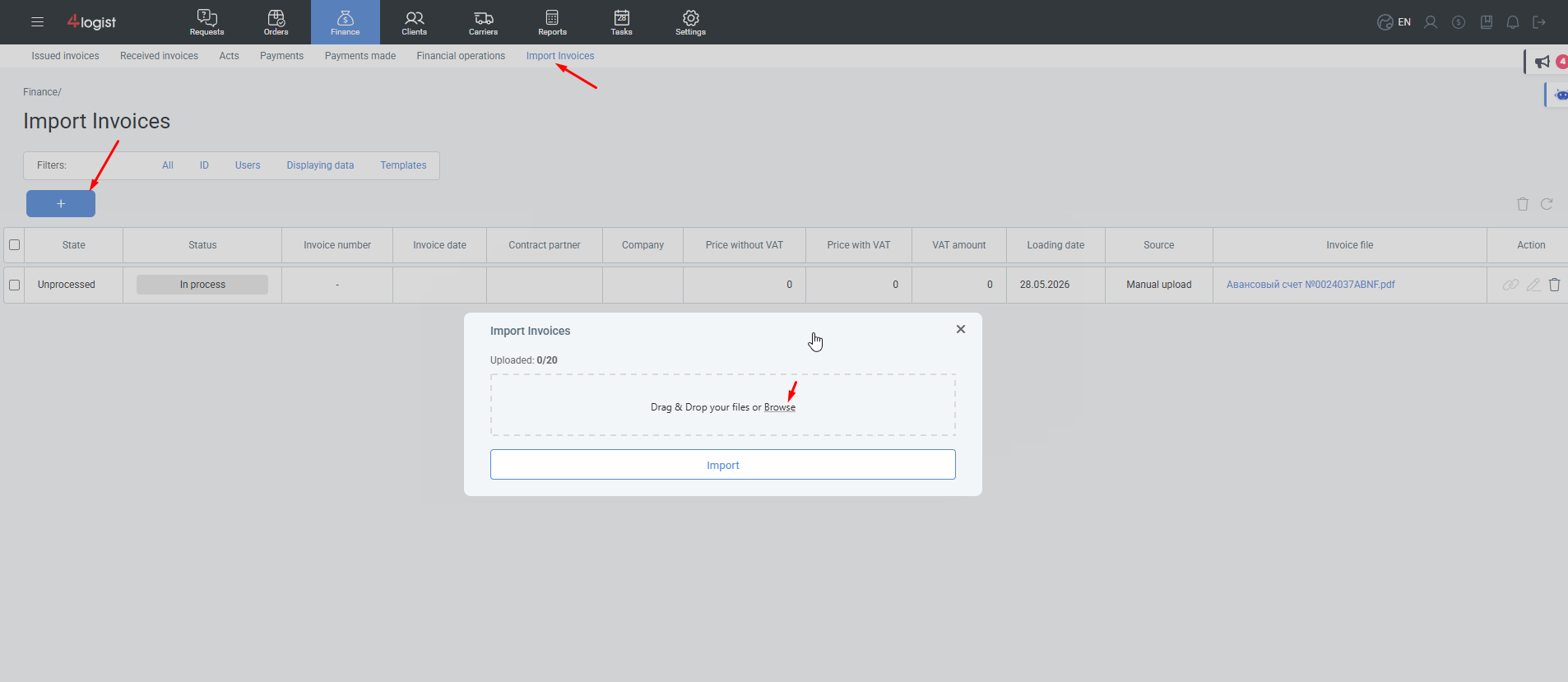
Once uploaded, invoices are placed in the processing queue. The queue works within a specific company-processing of invoices of other clients of the system does not affect the process.
During processing, the user can continue working in the system.
2. recognition and verification
The system performs automatic verification for each invoice:
- recognizes invoice details;
- identifies the company that issued the invoice;
- defines the recipient company;
- checks the amounts (including and excluding VAT);
- checks the currency;
- searches for the corresponding expense in the system.
Processing is performed sequentially: invoices are checked one at a time.
After processing is completed, the user receives a message.
3. Invoice statuses
During the import process, an invoice can receive one of the following statuses::
- Ready for linking – all data is correct, the corresponding expense was found.
- Requires editing – the data is recognized or partially does not correspond to the cost.
- Error – the invoice could not be matched (for example, the company was not found).
- Duplicate – the invoice was added earlier.
Preview and edit
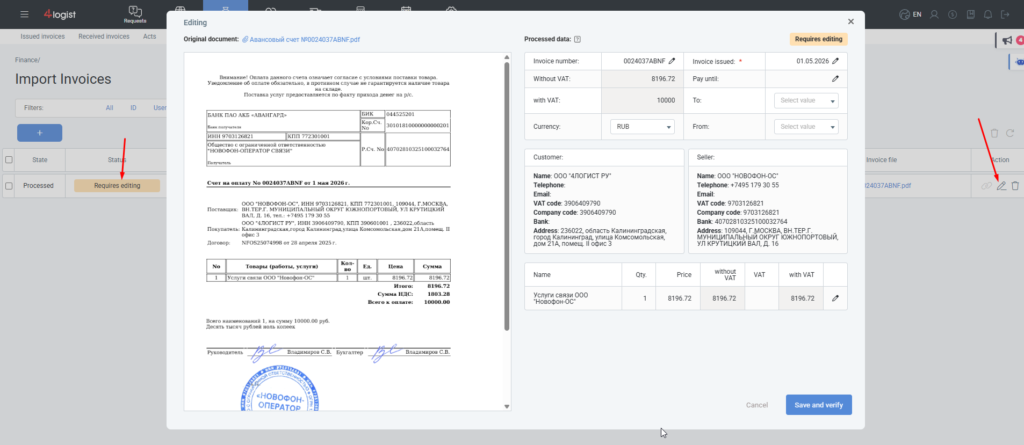
Preview mode is available for each uploaded invoice:
- at the left displays the original PDF document;
- on the right – recognized account data.
In this mode, the user can:
- check whether recognition is correct;
- edit amounts, invoice lines, quantity or price;
- save the changes and run the check again.
After editing, the invoice is re-validated.
Linking an invoice to an expense
An invoice can only be linked to an expense if the control data completely matches:
- counterparty (who issued the invoice);
- recipient company;
- amount and currency;
- matching existing costs.
Manual communication
The user clicks ‘link to expense’, after which the system offers a list of relevant expenses. First of all, expenses with a full (100%) match are reflected.
After confirmation, the invoiceis linked to the selected expense and displayed in the received invoices.
Automatic linking
The automatic document detection option is available in the invoice import settings.
If this option is enabled, the system automatically links the invoice to the expense without user input, if:
- matching companies;
- matching amounts (including VAT and excluding VAT);
- the currency matches.
If at least one condition is not met, the invoice will wait for manual verification.
Working with duplicates
If the uploaded account already exists in the system and was previously linked:
- it is designated as a duplicate;
- you can’t link it again;
- you can only delete an invoice.
A duplicate is determined after the first invoice is linked to the expense.
Limitations and features
- Currently, only PDF files are supported.
- Images (JPG, PNG) are not supported.
- The processing speed depends on the number of uploaded invoices.
- Communicationis based on the ‘one invoice — one expense’principle.
Usage Result
Using invoice import allows you to:
- significantly reduce the processing time of input invoices;
- minimize manual data entry;
- reduce the number of errors;
- simplify cost control and primary documentation.
This feature is recommended for regular use by companies with a large volume of incoming invoices.
Was this helpful?
0 / 0