The NAVI assistant helps you automatically recognize a customer’s request from an uploaded file and create an order based on it in the system. This speeds up the processing of incoming requests and reduces the number of manual actions.
1. Requirements for working with NAVI
To use the NAVI functionality, your pricing plan must be BASIC or higher.
2. Where is Navi located
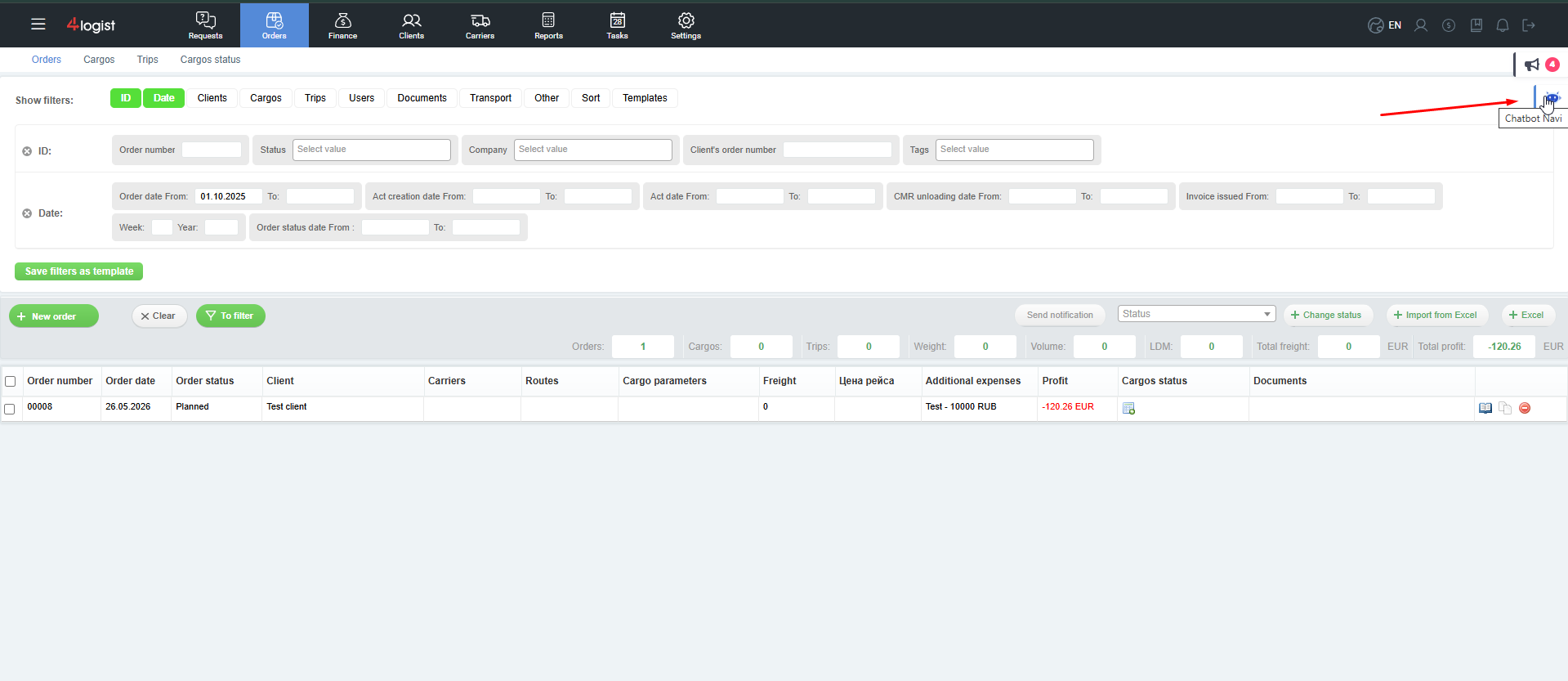
The NAVI interface is always open in the system and is located at:
upper-right corner of the screen → robot icon.
3. creating an order via NAVI
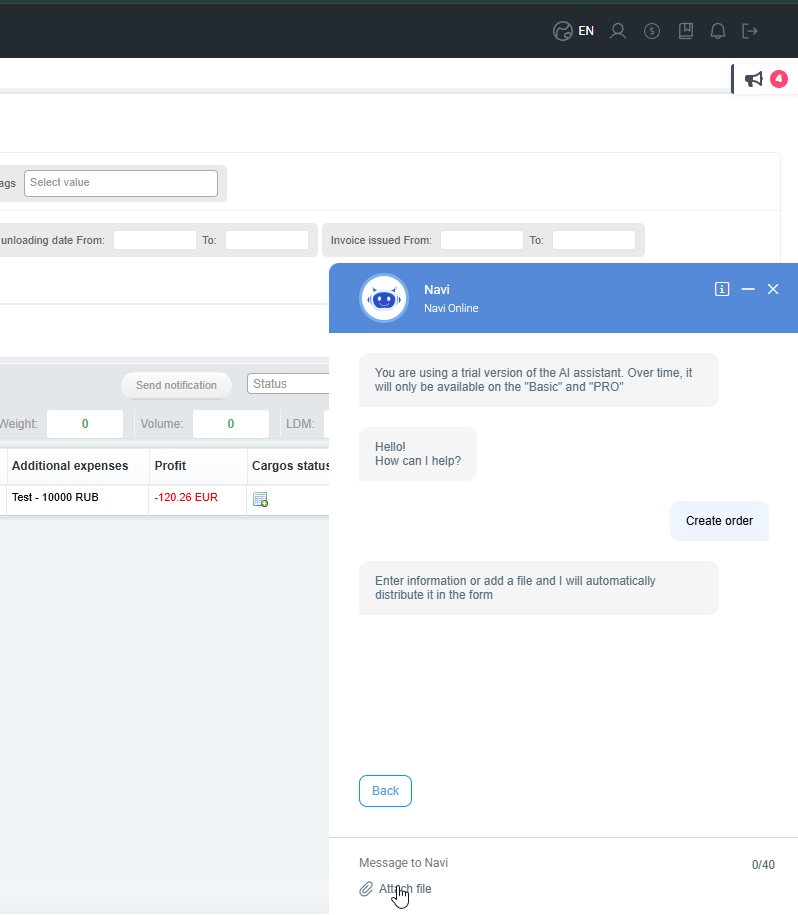
- Click ‘Create Order’ in the NAVI window.
- In the form, at the bottom of the screen, find a paper clip and the ‘attach file’ link.
- Click attach file and upload the document with the client’s request.
- Supported formats: PDF, Word (.doc/.docx).
- Wait for the’download completed’ status to appear.
- Tap the airplane icon -this is the Send button.
After sending NAVI, it takes some time to analyze the data.
4. request analysis and order form generation
After processing the file:
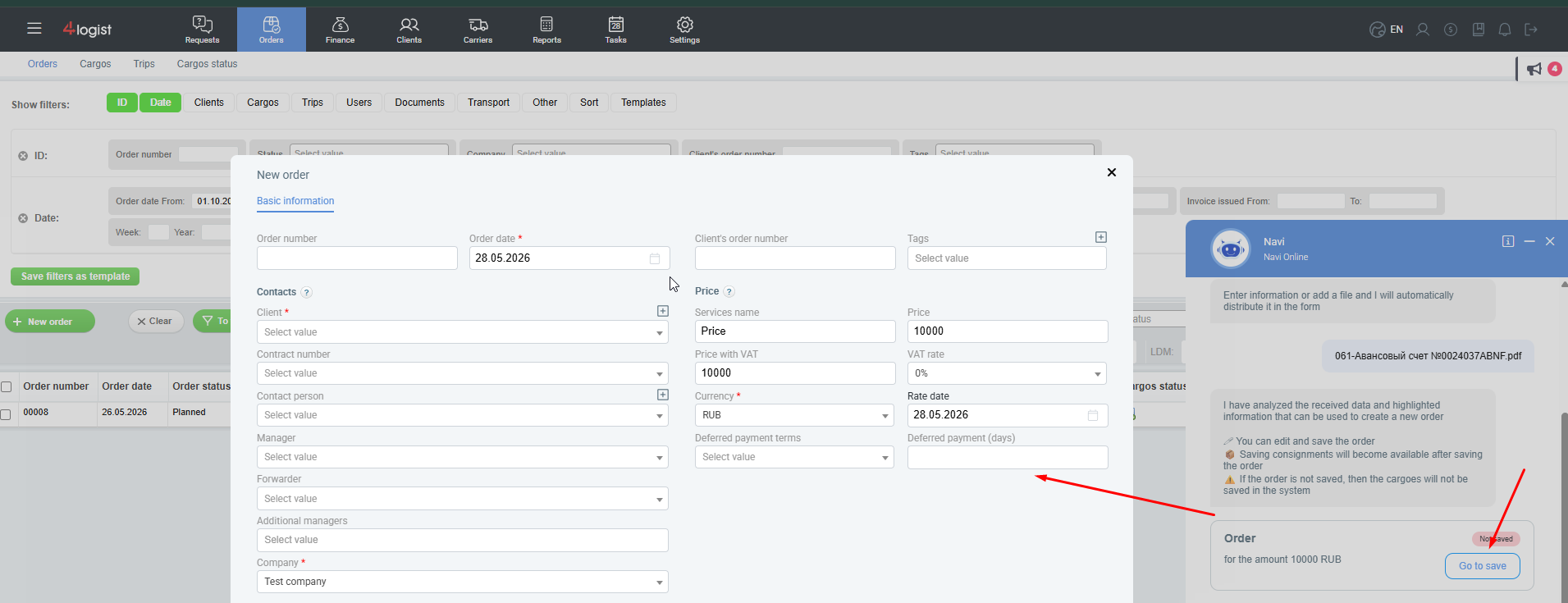
- NAVI displays a message when the analysis is completed.
- The’ Go to save’button appears.
- When you click on the button , the order form will open automatically with the completed data from your request.
5. What data does NAVI recognize?
The assistant can automatically detect and transfer the following information to the order form:
- Name of the client, if it already exists in your database.
- Contract number, if specified in the document and added to the client’s card.
- Contact person of the client, if it is included in the document and added to the card.
- The counterparty companyspecified in the application.
- Initial bid.
- VAT rate.
- Currency.
- Exchange rate date -set automatically if the currency differs from the currency of your system.
- The order creation date is always today‘s date.
- Order number – automatic numbering is used, you don’t need to fill it out manually.
All recognized data can be changed or supplemented manually before saving.
6. completion of registration
- Check the details in the order form.
- Make changes if necessary.
- Click ‘Save’.
After saving it to the system, a new order will be created based on the data extracted from your request file.
Was this helpful?
0 / 0