To use a company stamp and signature in documents, you first need to upload the corresponding images to the company profile.
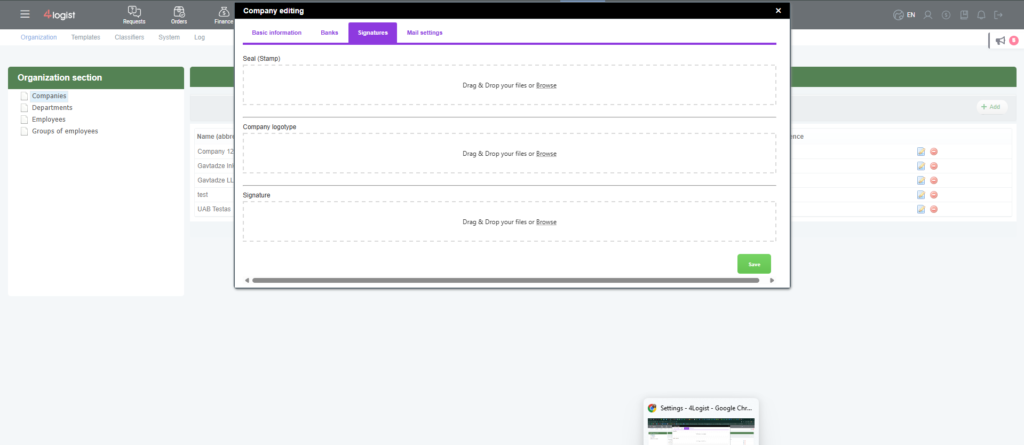
Go to Settings → Organization → Companies, open the required company, and navigate to the Signatures section.
Upload image files for:
- Company Stamp
- Director’s Signature
- Logo
Requirements for Stamp and Signature Files
To ensure that the stamp and signature are displayed correctly and clearly in documents, the images must meet the following requirements:
- The image must have a transparent background.
- The file must be saved in PNG format.
You can create such images yourself without any special software or technical skills by following these simple steps:
- Open the image in Paint (available on any computer running Windows).
- Crop the stamp and signature separately, leaving as little empty space around the edges as possible.
- Save the cropped images.
- Remove the background using the online tool: Pixian.ai
- Download the processed images with a transparent background in PNG format.
- Upload the resulting files to the Images for Documents section in your company profile.
Tip: The cleaner the original scan or photo, the better the stamp and signature will look in generated documents.
After saving the images, they can be used in document templates.
To display the stamp and signature in documents, the corresponding variables must be added to the document template. If the images do not appear in your documents, check that the template contains the required placeholders or contact Support for assistance with template configuration.
Note: Images are linked to a specific company. If you work with multiple legal entities, you can upload a different stamp and signature for each company. When creating a document, the system will automatically use the images associated with the selected company.
Was this helpful?
0 / 0