The Task Manager functionality is available in 4logist. It allows you to create tasks, assign employees, monitor deadlines, plan work for the day and week, and track tasks assigned to employees.
Task Manager is located in the “Tasks” section.
Sections of the “Tasks” Module
The Tasks module includes two main sections:
Task Kanban — a task board where tasks are grouped by status, due date, and assignee.
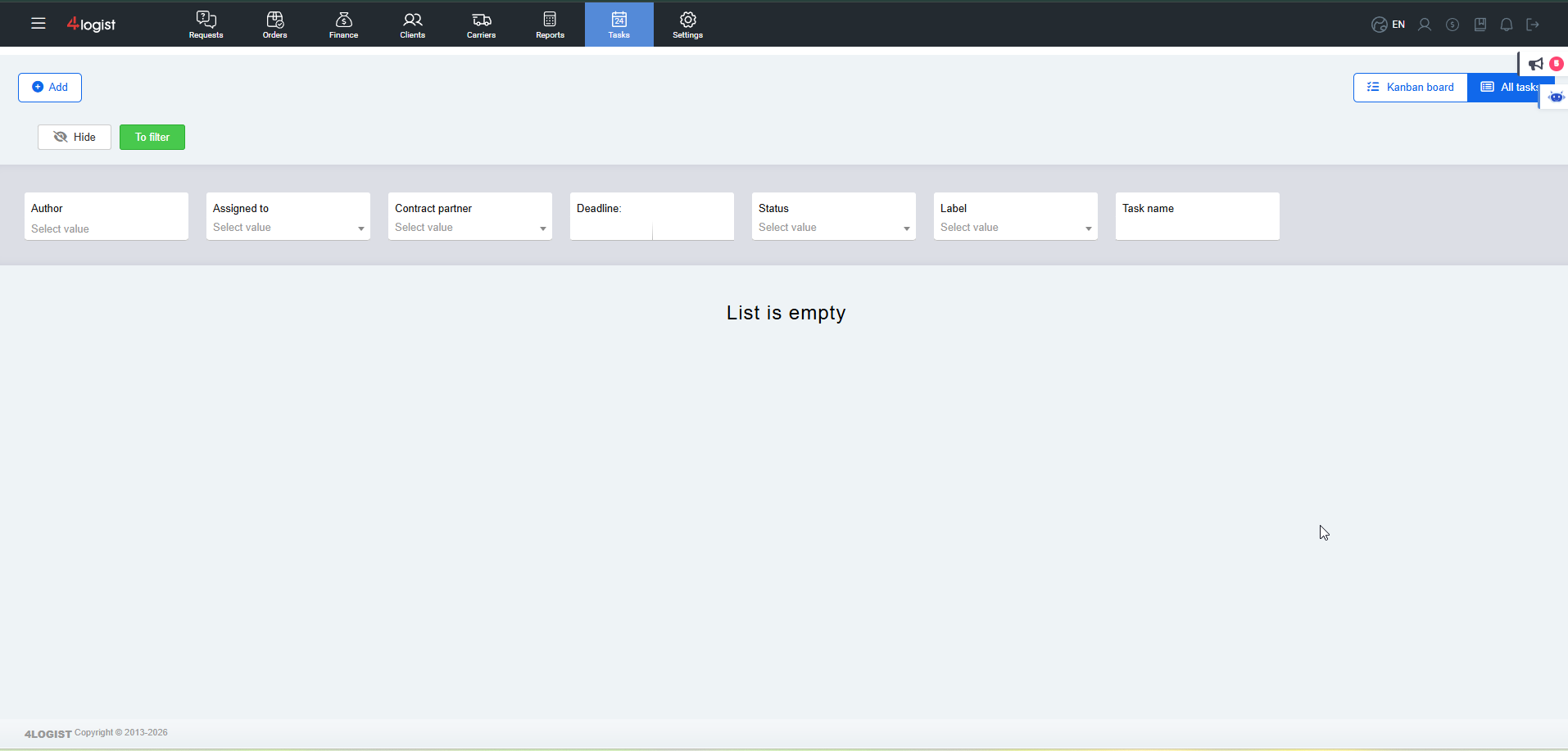
All Tasks — a complete list of tasks. Here, you can view tasks as a list and use filters to find the relevant tasks.
You can switch between the sections in the upper-right corner of the screen.
Task Kanban
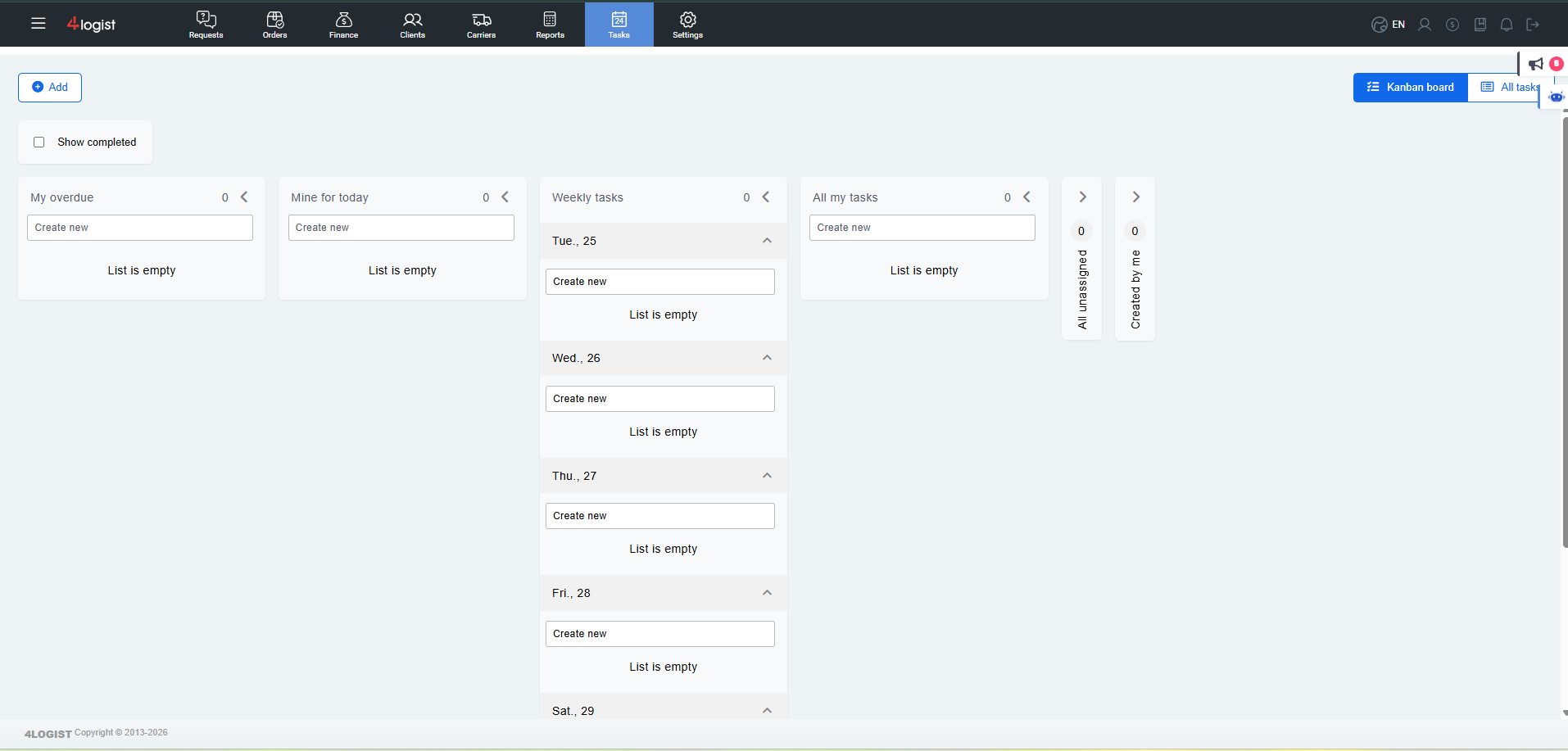
The Task Kanban section displays tasks as a board divided into separate groups.
This format is convenient for daily work: you can see tasks due today, your weekly plan, overdue tasks, tasks you have assigned, and tasks without an assignee.
How to Create a Task
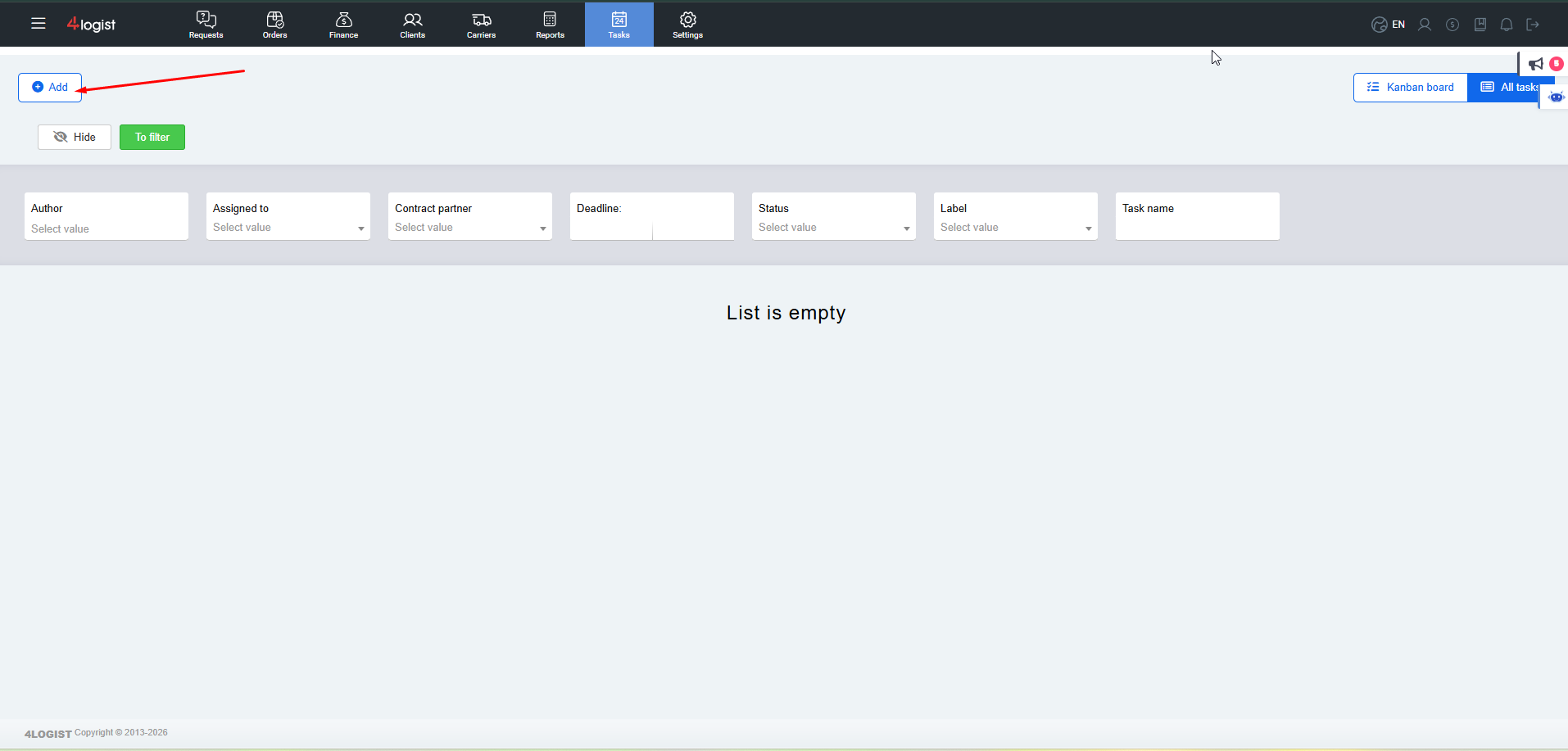
You can create a new task in several ways:
- using the main “Plus Add” button;
- using the plus icons next to the task groups on the Kanban board.
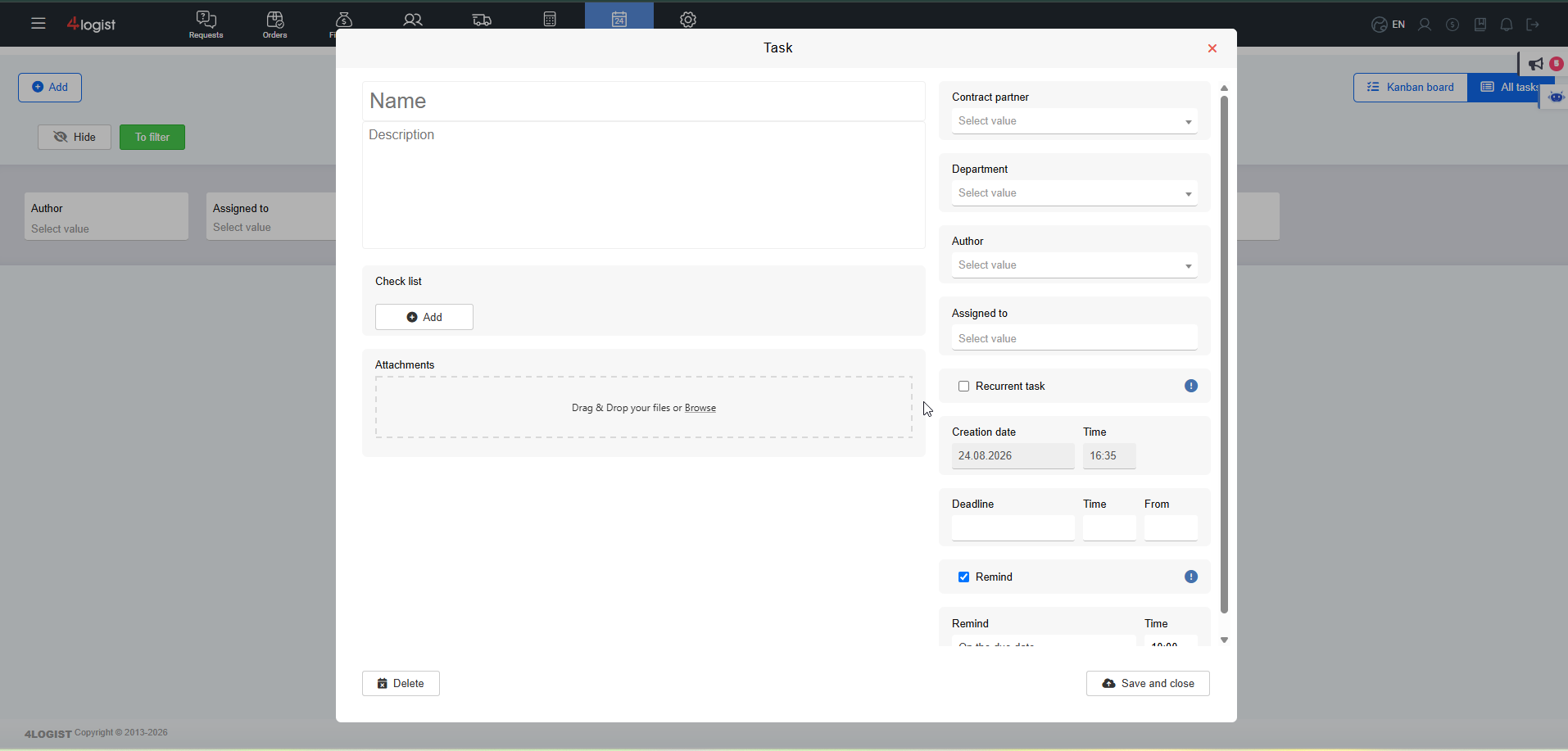
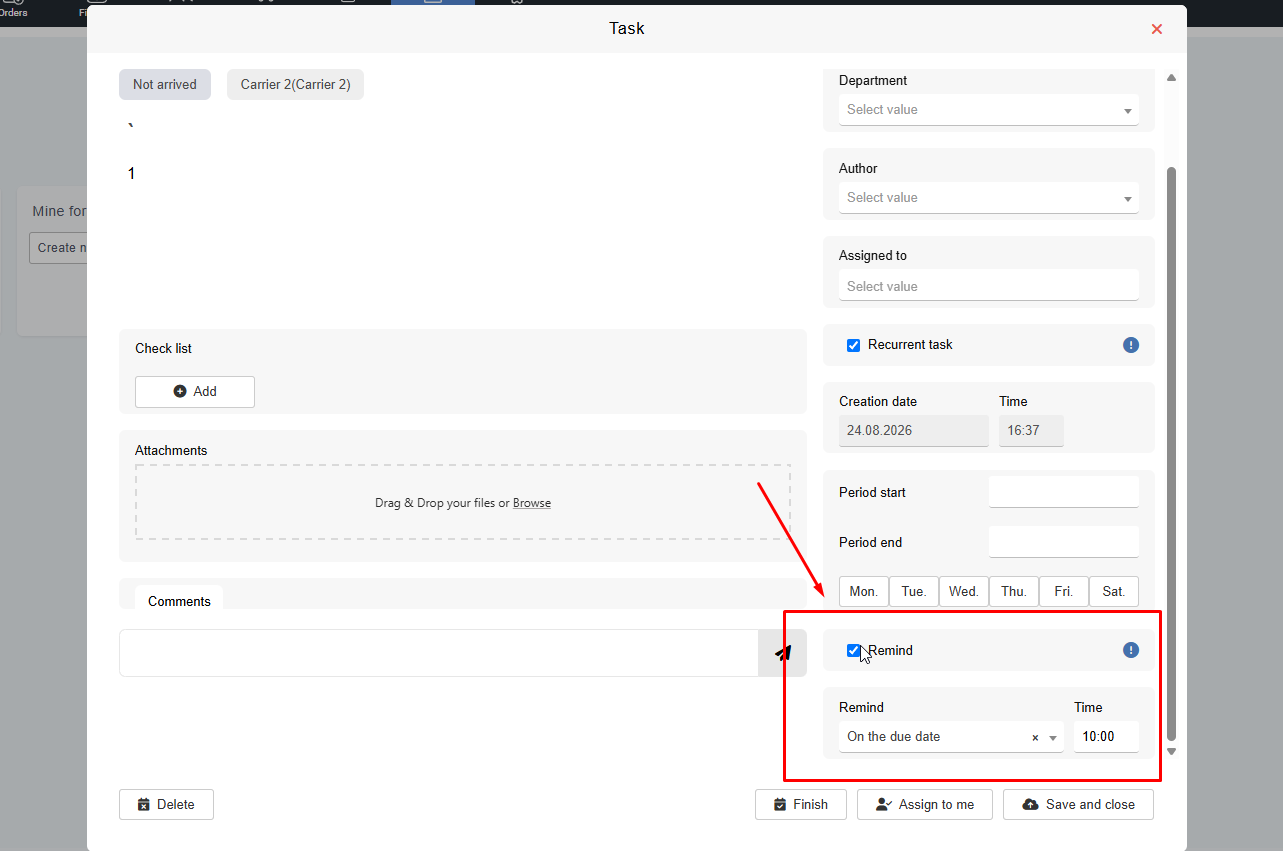
After clicking the button to create a task, the task form will open.
In the form, you can specify:
- the task title;
- a detailed description;
- a checklist;
- the counterparty associated with the task;
- an assignee or department;
- the due date;
- recurrence settings;
- how you want to be notified when the task is completed.
Task Title, Description, and Checklist
In the Title field, enter a short and clear task title. For example: “Call the Client,” “Check the Documents,” or “Prepare an Invoice.”
In the Description field, you can add details, such as what needs to be done, which information needs to be checked, who should be contacted, or what result is expected.
If necessary, you can add a checklist. A checklist is used for individual steps that need to be completed as part of a task.
For example:
- check the order details;
- contact the client;
- send the documents;
- leave a comment in the client’s profile.
Linking a Task to a Counterparty
A task can be linked to a counterparty, such as a client or carrier.
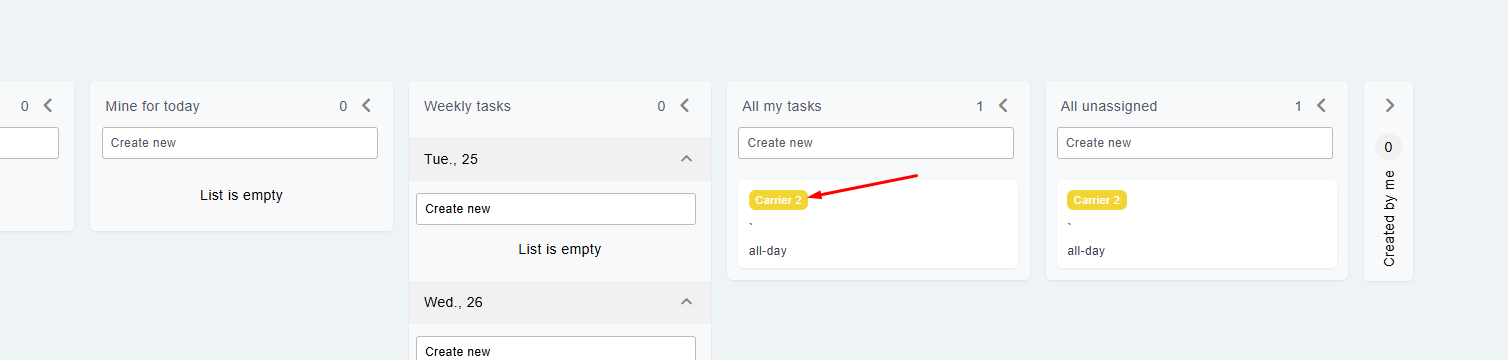
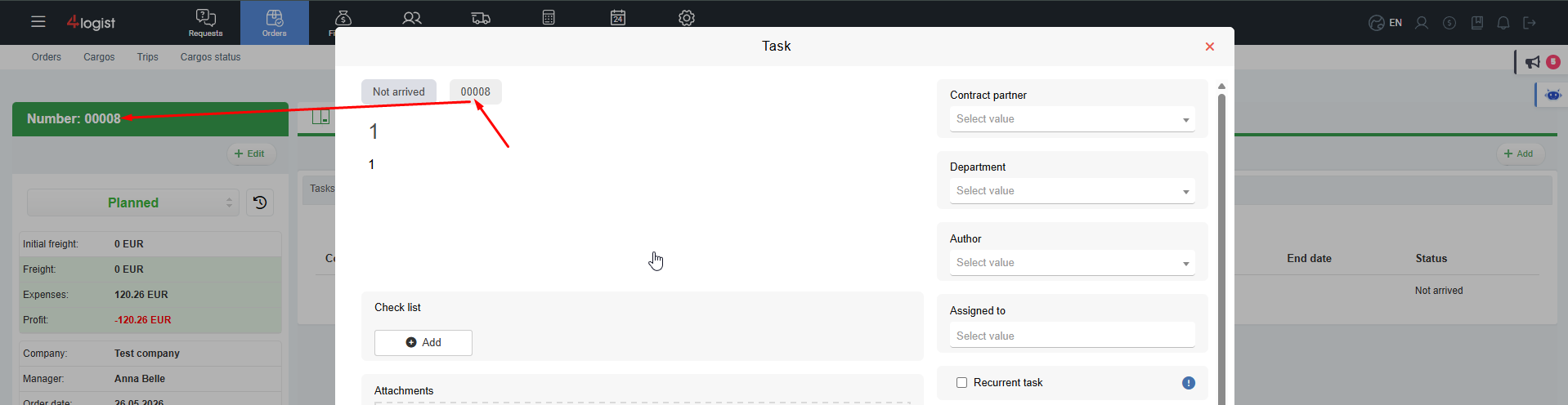
If the task relates to a specific counterparty, select it in the task form. The task will then display a link to the relevant profile in the system.link to the desired system card.
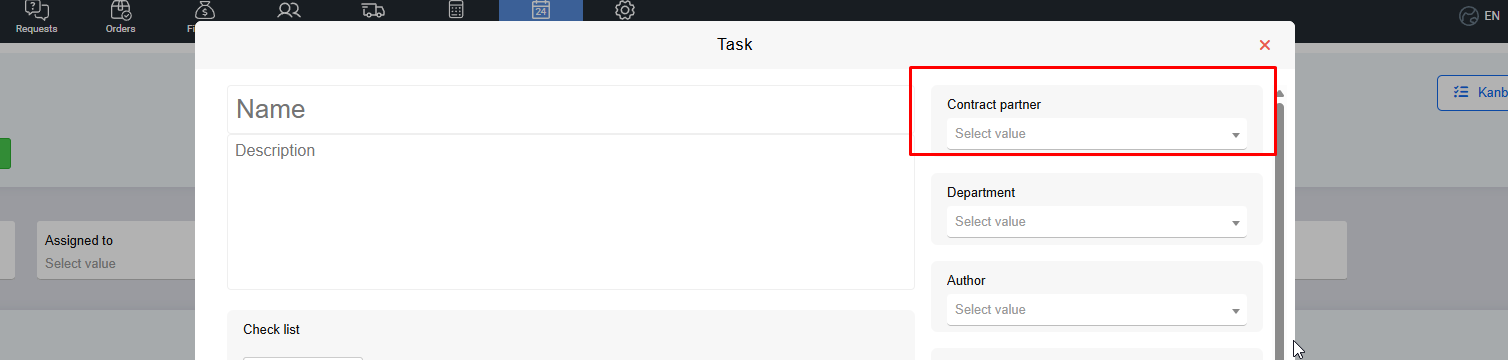
A task can also be linked to other objects in the system, such as a request or order. In this case, the task card will display a button or link to the corresponding object.
Clicking the link will open the relevant client, carrier, request, or order card.
Assigning an Assignee
A task can be assigned to:
- a specific employee;
- an entire department.
If a specific assignee or department is selected, the task will appear in the assigned employees’ “My Tasks” list.
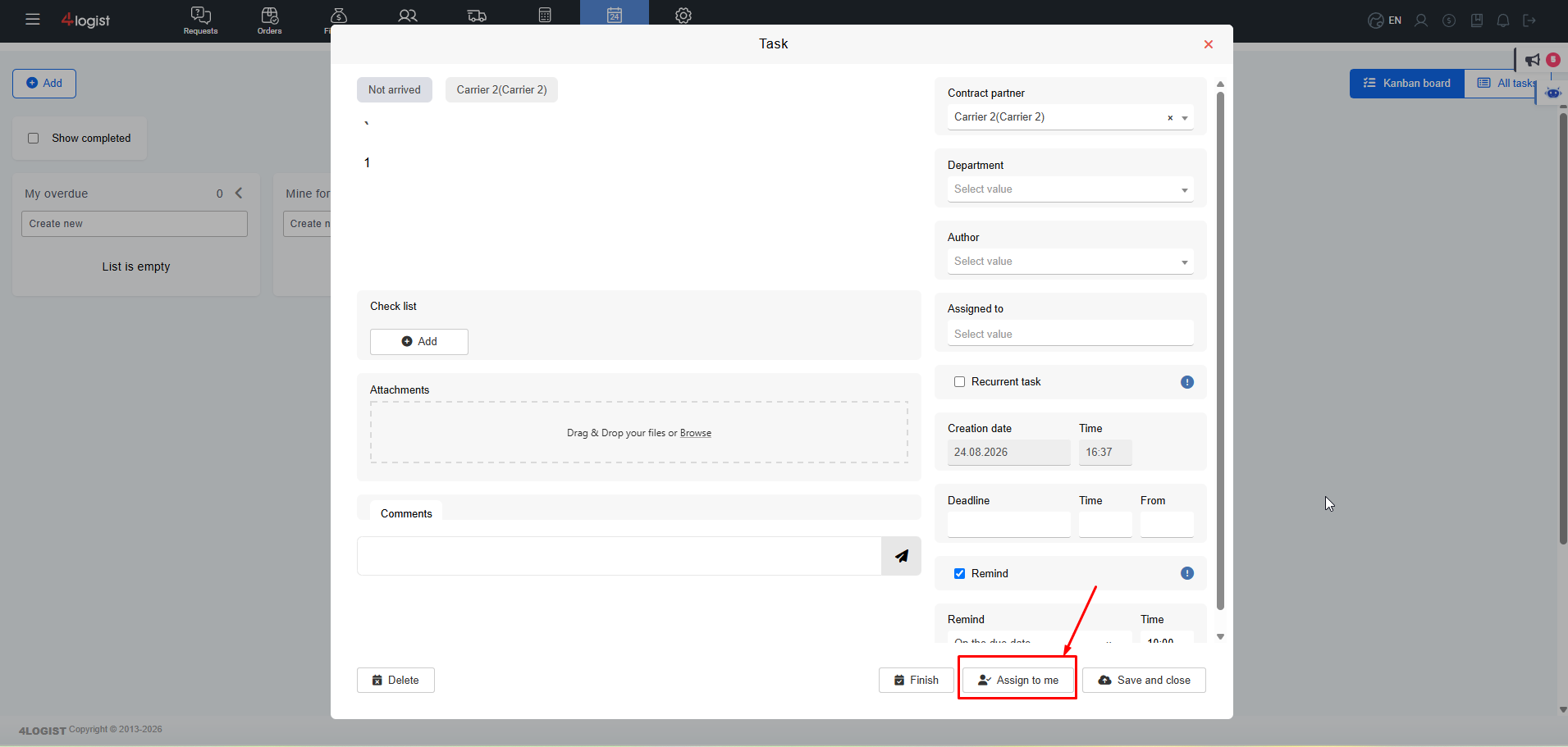
If no assignee is selected, the task is considered unassigned and appears in the “All Unassigned” group. Any employee can then accept the task.
Unassigned Tasks
Unassigned tasks are tasks without an assignee.
To accept an unassigned task:
- Open the task.
- Find the assignee field.
- Click “Accept.”
- Save the changes.
You will then automatically become the task assignee, and the task will appear in your “My Tasks” list.
Recurring Tasks
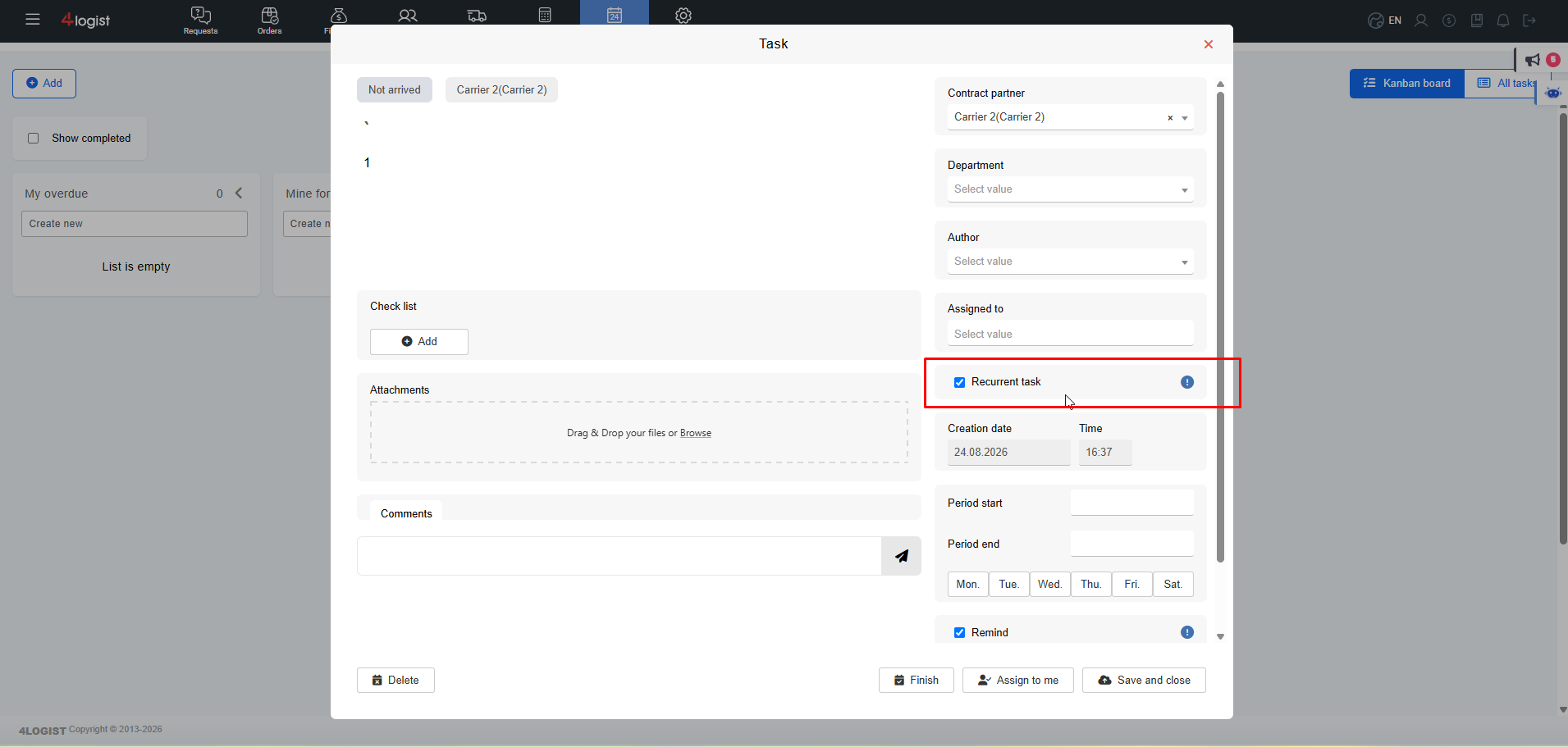
A task can be set to recur. This is useful for regular activities that need to be performed at specific intervals.
To create a recurring task:
- Select the “Recurring Task” checkbox.
- Specify the task recurrence period.
- Select the recurrence frequency.
- Fill in the remaining task details.
- Click “Save and Exit.”
The available recurrence frequency options are displayed in the task form and may vary depending on the current system version.
Due Date
You can set a due date for a task.
If the task is not completed by the specified due date, it will appear in the “My Overdue Tasks” group.
This helps you keep track of tasks that require attention and were not completed on time.
Task Groups on the Kanban Board
After a task is created, it is automatically placed in the appropriate group on the Kanban board. The group depends on the details specified when creating the task, such as the assignee, due date, and other parameters.
The following groups are available on the Kanban board.
My Overdue Tasks
The “My Overdue Tasks” group contains tasks that were not completed by the specified due date.
These tasks require immediate attention because their due dates have already passed.
My Tasks for Today
The “My Tasks for Today” group displays your tasks that are due today.
This group helps you quickly see which tasks need to be completed during the current day.
My Weekly Plan
In the “My Weekly Plan” group, tasks are organized by day of the week.
Tasks are displayed under the appropriate days based on their due dates. This allows you to plan your workload in advance and see the amount of work scheduled for the coming days.
All My Tasks
The “All My Tasks” group displays tasks assigned to you, as well as tasks created by you.
This group allows you to see all tasks related to your work.
All Unassigned Tasks
The “All Unassigned Tasks” group displays tasks without an assignee.
These tasks can be accepted by employees who are available to complete them.
Tasks Assigned by Me
The “Tasks Assigned by Me” group displays tasks that you created for other employees.
This group helps you keep track of tasks that you have assigned to your colleagues.
Task Actions
You can open a task to view its details.
In the task card, you can:
- view the task title and description;
- review the checklist;
- add a comment;
- copy the task link;
- send the link to a colleague;
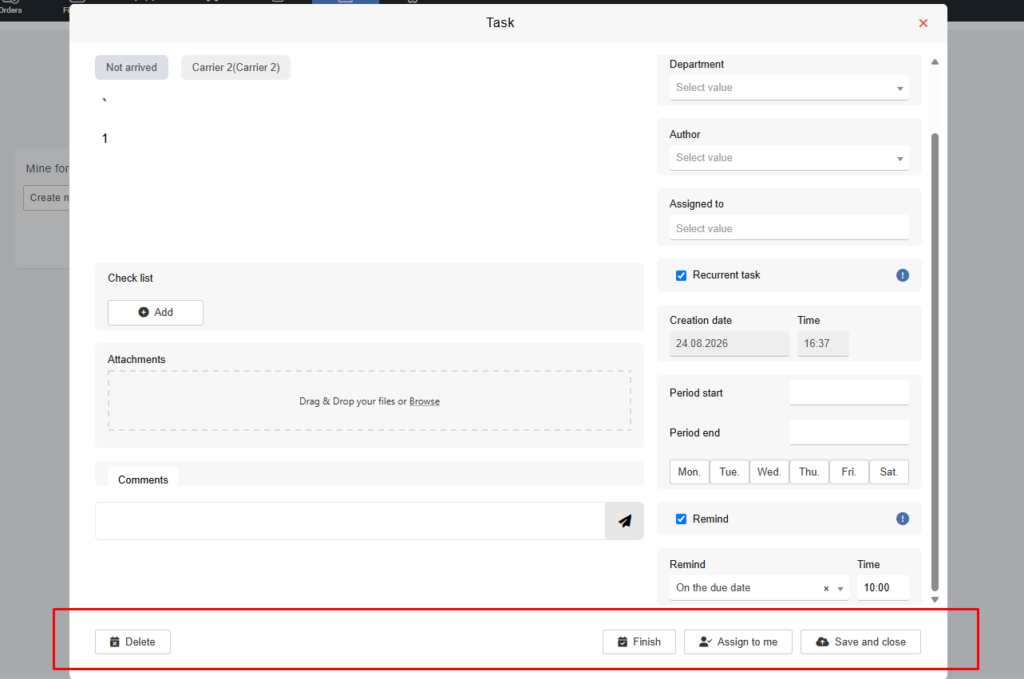
- complete the task once it has been performed;
- delete the task if necessary.
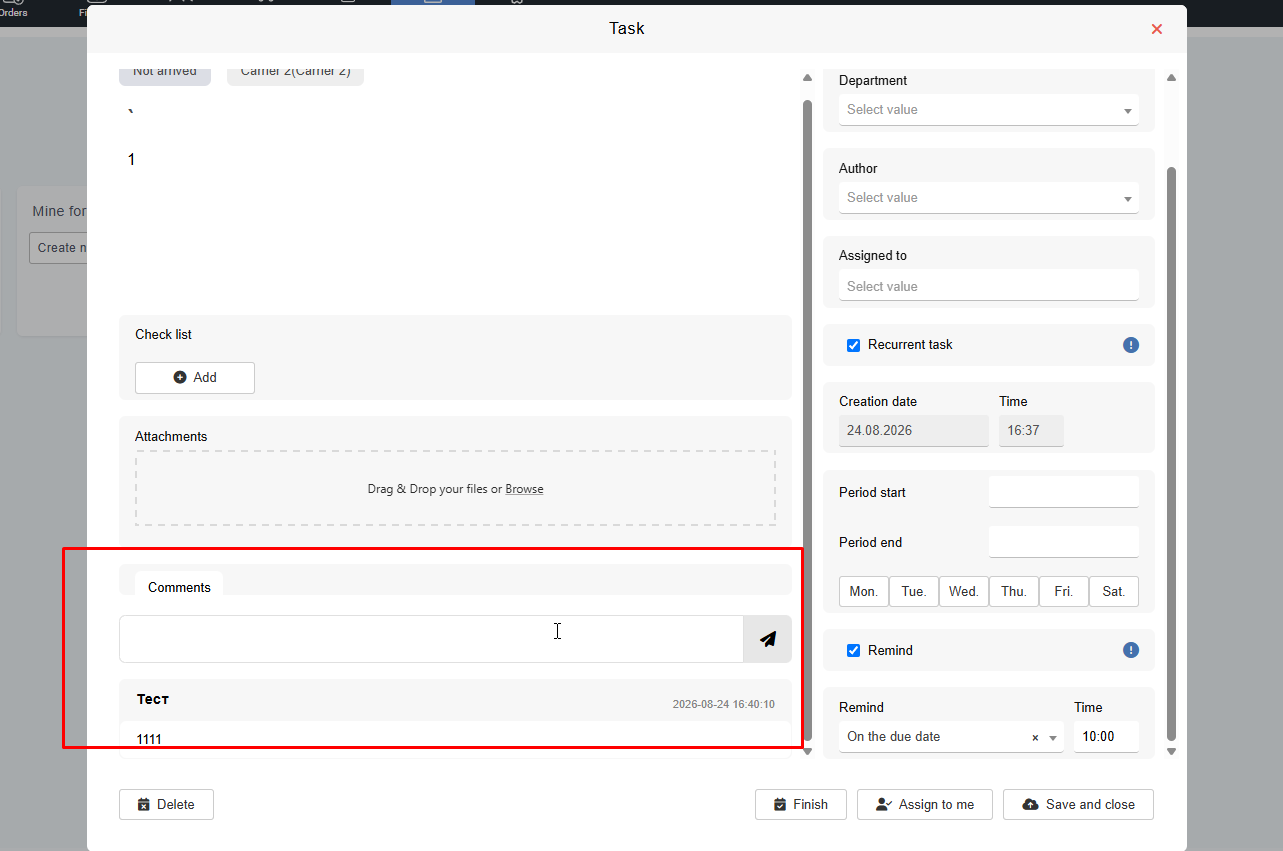
Task Comments
You can leave comments on a task. This is useful for recording additional information, clarifications, call results, or updates on the task’s progress.
Comments help preserve the task history and provide context for other employees.
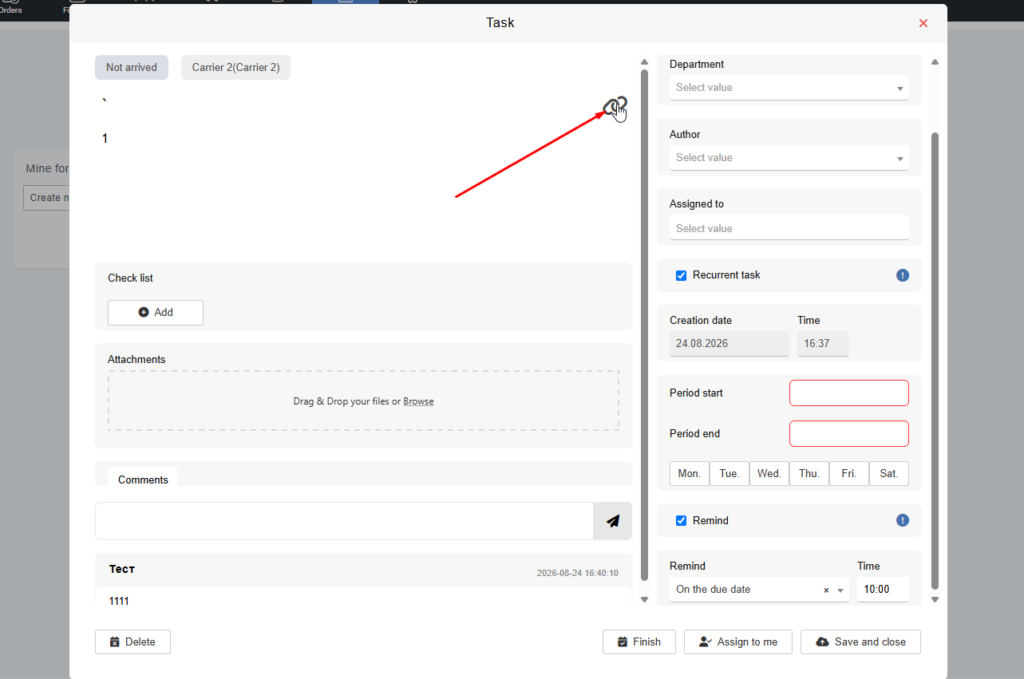
Task Link
In the task card, you can copy the task link and send it to a colleague.
This is useful when you need to quickly share a task with another employee or discuss it in a conversation.
Completing a Task
Once a task has been completed, you can mark it as complete.
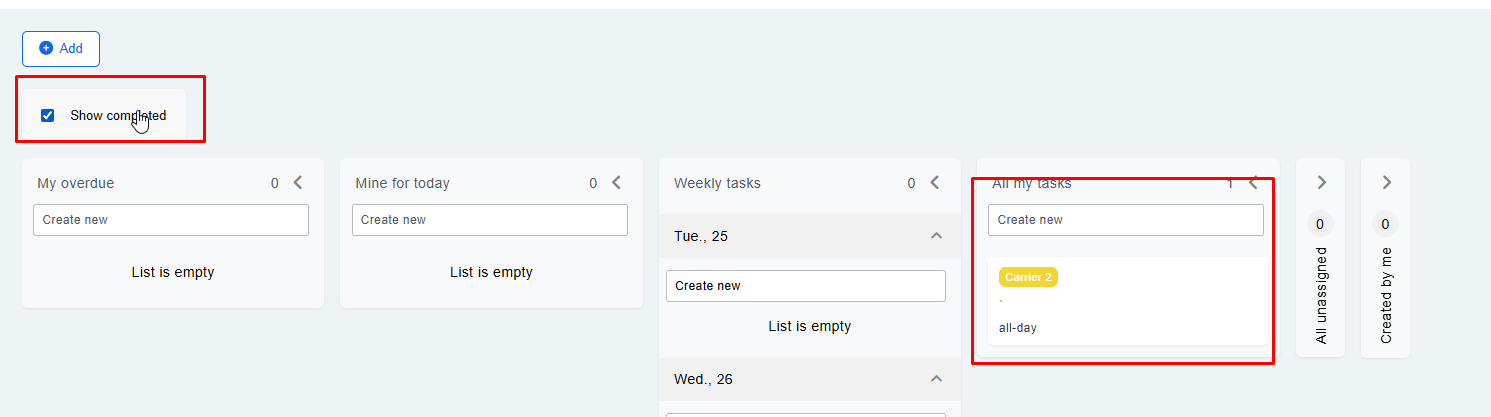
A completed task is considered finished and no longer requires any action. If completed tasks are displayed, the task will be shown in green on the board.
“Show Completed” Filter
The Kanban board includes the “Show Completed” filter.
When this filter is enabled, the board displays both active and completed tasks.
Completed tasks are highlighted in green.
Moving Tasks Between Groups
Tasks can be moved between groups on the Kanban board.
To do this, click and hold the task, then drag it to the required group.
For example, to plan your tasks for the week, drag a task to the required day in the “My Weekly Plan” group.
You can also move a task from the weekly plan to the “My Tasks for Today” group if you want to complete it today.
If you accepted a task by mistake or cannot complete it, you can move it back to the “All Unassigned Tasks” group. Another employee will then be able to accept it.
“All Tasks” Section
In the “All Tasks” section, tasks are displayed as a list.
Here, you can view tasks and use filters to find the required information.
For example, you can filter tasks by assignee, status, due date, or other available parameters.
Creating Tasks from System Cards
In addition to creating tasks from the main “Tasks” module, you can create them directly from system object cards.
You can create a task from the following cards:
- request;
- order;
- client;
- carrier.
To do this, open the required card and go to the “Reminders” or “Tasks” section. The section name may vary depending on the current interface version.
Then click the button to add a new task and complete the form.
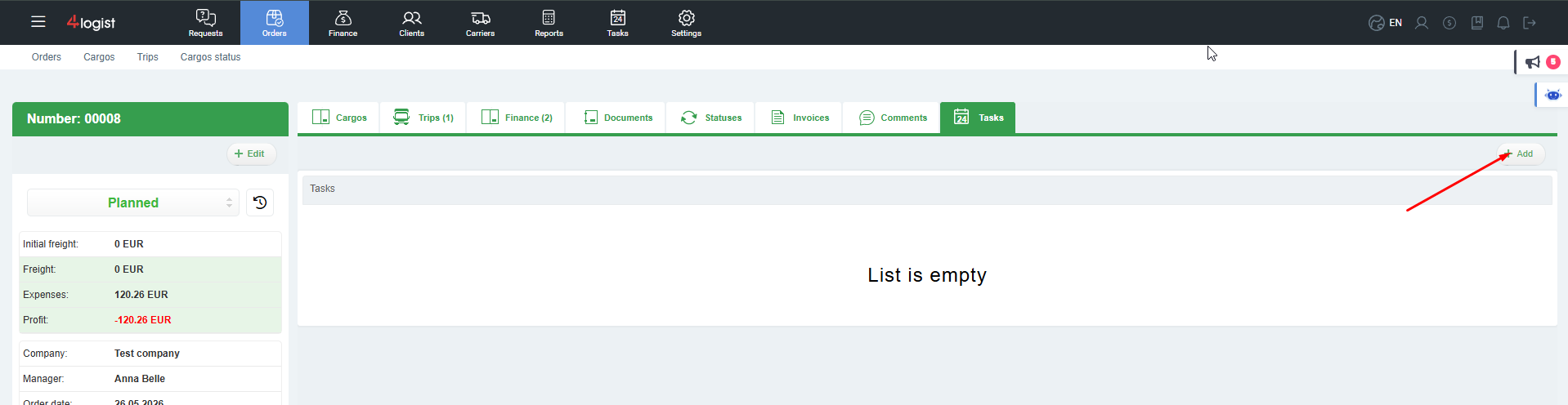
Once created, the task will appear on the Kanban board. You can work with it in the same way as with tasks created from the main “Tasks” module.
If the task is linked to a specific object, its card will display a link to that object, such as an order, request, client, or carrier.
Example of Working with a Task
Let’s look at a simple example.
You need to create a task called “Make a Call.”
To do this:
- Go to the “Tasks” module.
- Open the “Task Kanban” section.
- Click “Plus Add.”
- Enter the task title: “Make a Call.”
- Add a description if necessary.
- Select a client or carrier if the task relates to a specific counterparty.
- Assign an employee or department.
- Set the due date.
- Select the notification method.
- Click “Save and Exit.”
Once saved, the task will appear in the appropriate group on the Kanban board.
What Task Manager Is Used For
Task Manager helps you:
- record work tasks;
- assign tasks to employees and departments;
- monitor due dates;
- view overdue tasks;
- plan tasks for the day and week;
- make unassigned tasks available for employees to accept;
- track tasks assigned to other employees;
- link tasks to clients, carriers, requests, and orders.
Was this helpful?
0 / 0