If your company has its own domain and hosting, mail can be hosted by the same hosting provider. For example, the addresses of such mailboxes may look like this:
info@example.comsales@example.commanager@example.com
Here example.com — your company’s domain, and the part before @ is the mailbox name.
Mail on your own domain can also be served by a separate mail service. If you don’t know exactly where your email is located, check with your hosting provider.
1. Request connection parameters
To connect your email to 4logist, contact your hosting provider’s support service. Attach screenshots of mail settings from 4logist so that the specialist can see which fields need to be filled in.
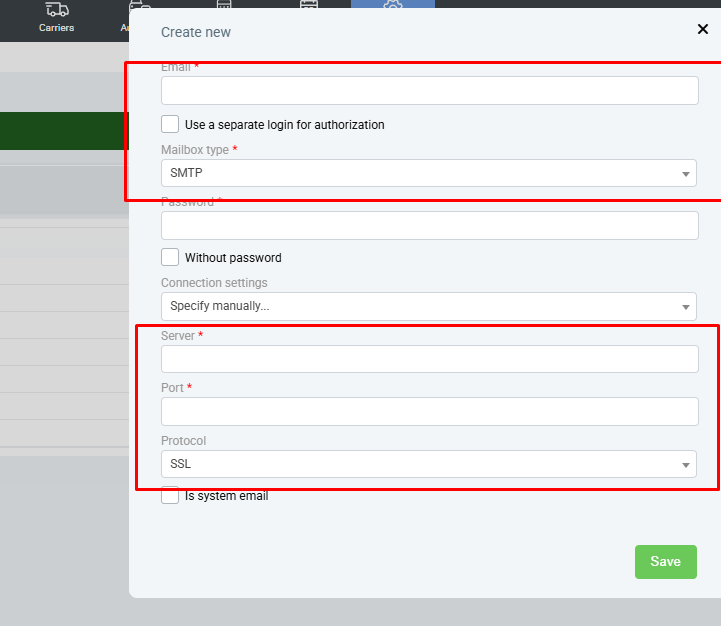
You can use the following message text::
Hello!
We want to connect the mailbox [put here your email address] to the 4logist CRM system.
The attachment contains screenshots of the connection settings. Please tell me what values you need to specify in each field: mail server addresses, ports, encryption type, user name, and other necessary parameters.
Also specify whether you can use a regular mailbox password or whether you need a separate app password to connect, and whether you need to enable access for external apps.
Please compare the parameters with the field names shown in the screenshots.
2. Fill in the settings in 4logist
After receiving a response from the hosting provider:
- Open mail settings in 4logist-Settings-System-Mail Settings.
- Move the received values to the appropriate fields.
- Enter the password required for the connection.
- Make sure that it is filled in correctly and save the settings.
Specify the server names, port numbers, and encryption type according to the provider’s response. If you don’t understand which field the parameter corresponds to, ask support to clarify this.
3. Check how email works
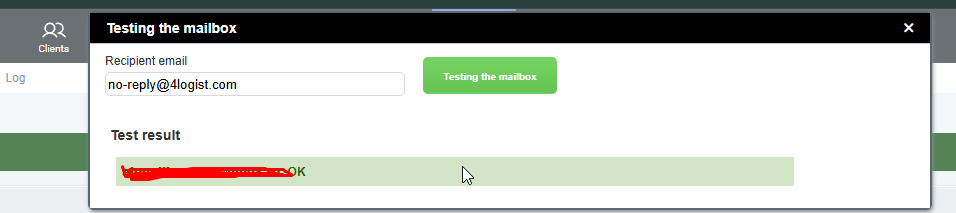
After saving the settings, perform a connection check, if this feature is available in the Logistician. Then check how email works:
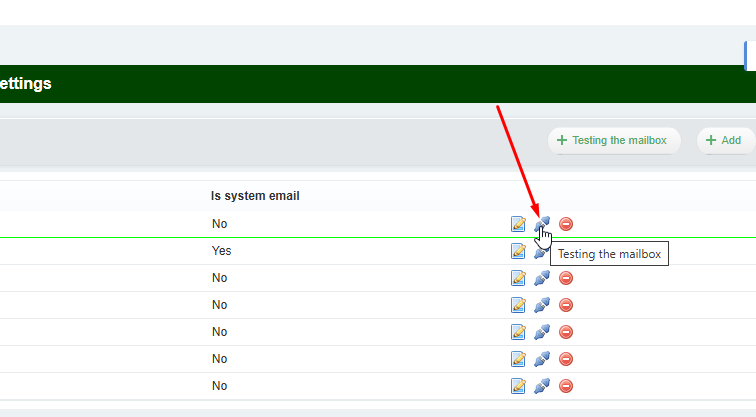
If the verification failed with an error, take a screenshot of the message and send it to the hosting provider’s support. Specify at what stage the problem occurred: when connecting, sending, or receiving an email. After clarifying the parameters, make changes, save the settings, and check again.
Was this helpful?
0 / 0