To edit or add your company details, go to Settings → Organization → Companies.
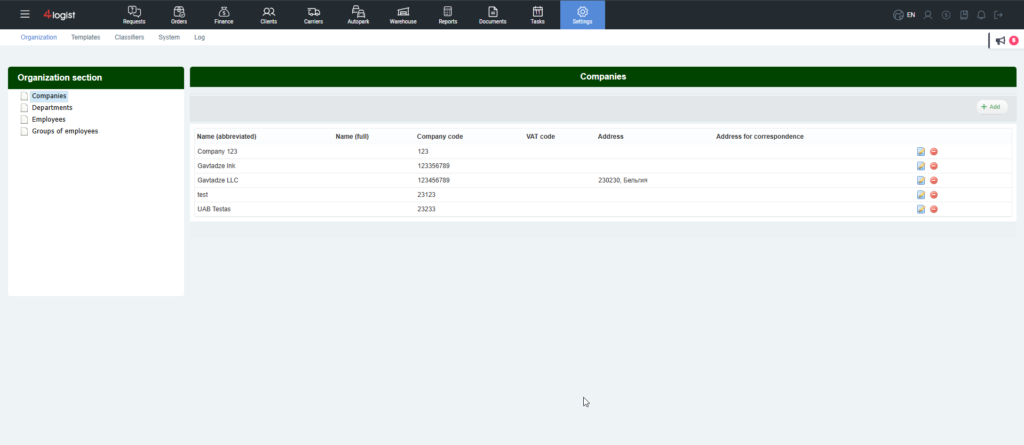
f you have multiple legal entities, you can add them in the same section. This allows you to work with all companies within a single system.
To create a new company, click Add and fill in the required information in the company card.
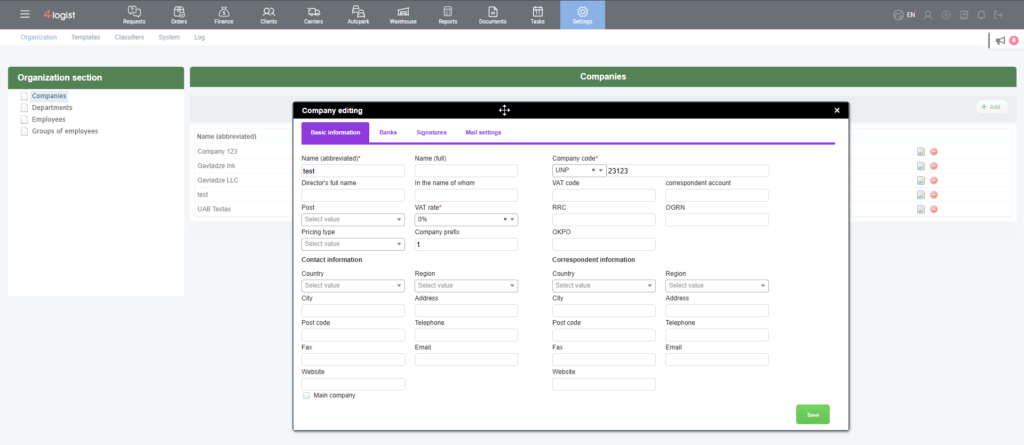
General Information
Short Name
Full Name – used in Documents.
Director’s Name – may be entered in abbreviated form.
Represented By – enter the information from your contract header, for example: General Director Julia Volodymyrivna Rozum, acting on the basis of the Charter.
Position – added separately in the Employee Positions directory.
VAT Rate – set the default VAT rate for your company. It can be changed later when creating Orders.
Price Calculation Type – select whether prices should be displayed excluding VAT or including VAT by default. If necessary, this setting can be changed when creating an Order.
Legal Address and Correspondence Information are used for displaying information in Documents. If your legal and mailing addresses are the same, you can fill in only the Contact Information section to avoid duplication.
Company Code – your registration number.
VAT Number, Correspondent Account, Tax Registration Code, Company Registration Number, BIN, Tax Identification Number, Statistical Code – fill in only the fields applicable to your country.
Important: If you have multiple legal entities, you can designate one as the Main Company by selecting the checkbox below the Contact Information section. By default, all Requests and Orders will be created on behalf of this company. If needed, another company can be selected from the drop-down list when creating a Request or Order.
Banks Tab
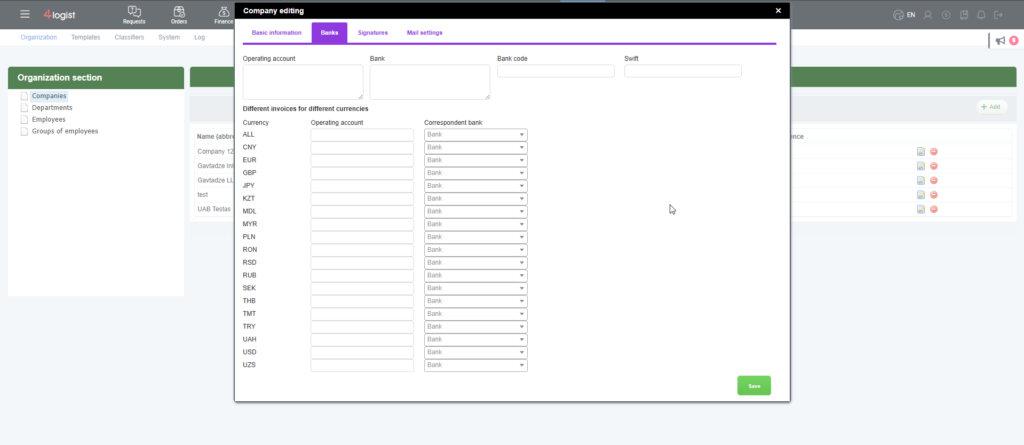
On the Banks tab, enter your banking details. You can add multiple bank accounts for different currencies.
However, if you have multiple accounts in the same currency opened in different banks, this configuration is not supported by default.
In this case, please contact Support. We can customize your document templates to use different banks in separate templates.
Images for Documents
We have prepared a separate article explaining how to add your company’s stamp and signature to documents.
Email for Sending Messages
If you have multiple companies, you can configure a separate email address for each company to send emails from the system.
To do this, go to the Mail Settings tab and select an existing email account from the drop-down list or add a new email address.
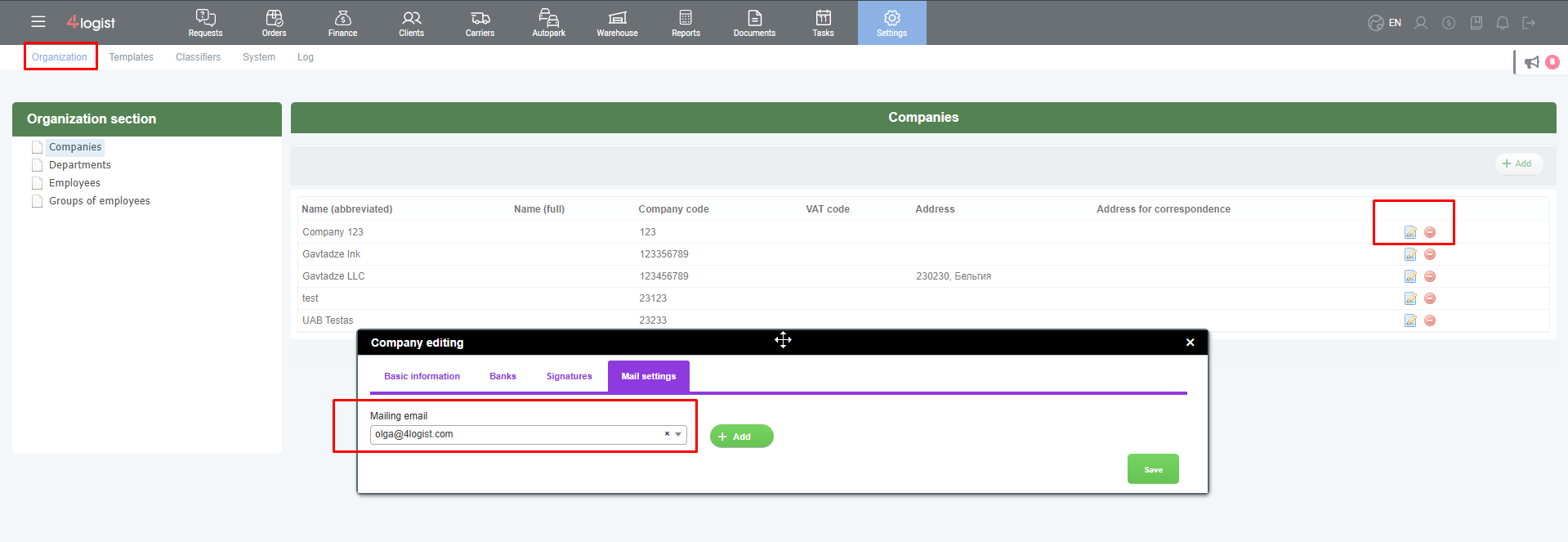
Important: the email account must be configured and tested correctly.
Please refer to the corresponding guide for email setup and testing.
Was this helpful?
0 / 0