Authorization via your personal email address
To enable integration with personal mail, you need to provide sufficient storage on the disk to which files will be transferred.
A user with super-admin access in their merchant profile (billing) can find out how much disk space is needed for your files.
Send the following information to the Technical Support Employee::
- Email address to be integrated with
- Client ID
- Secret
Attention! Integration cannot be performed if at least one list item is missing.
If the necessary information is not provided, support has the right to refuse to configure it, because the task is technically impossible without all the data.
To get the information listed above, the owner of Yandex. Mail (Google account) must follow these steps::
- Follow the link in Google Cloud AI and Cloud Computing Services
- Go to the console there (highlighted in the screenshot)
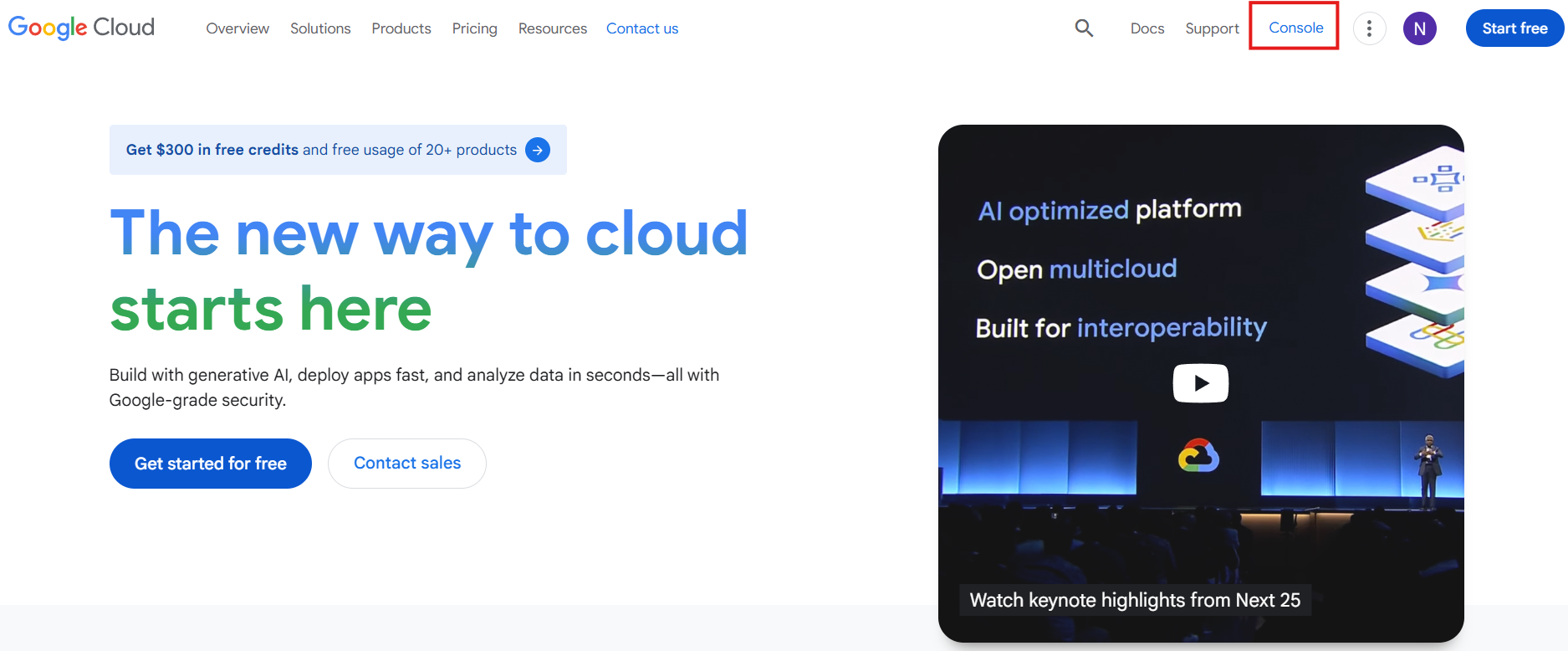
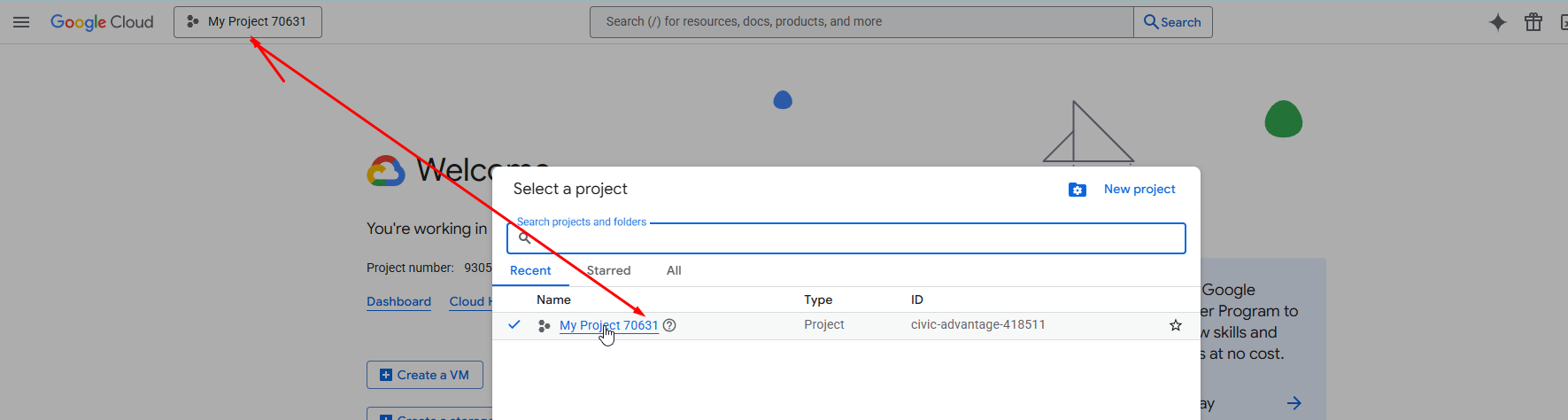
3. If the project is not created, then you need to create it. You can specify any name. Don’t enter anything in the organization field.
4. Go to the project and then to the API’s & Services section
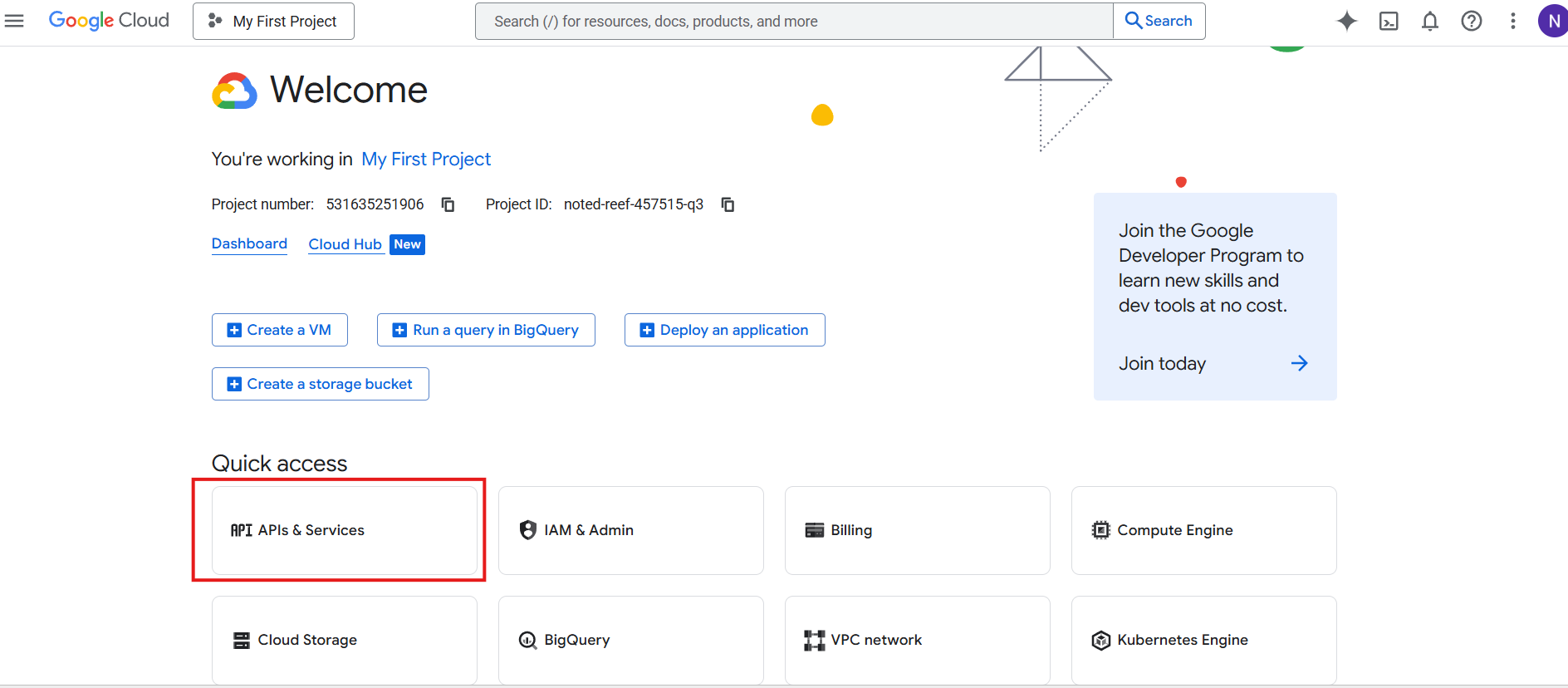
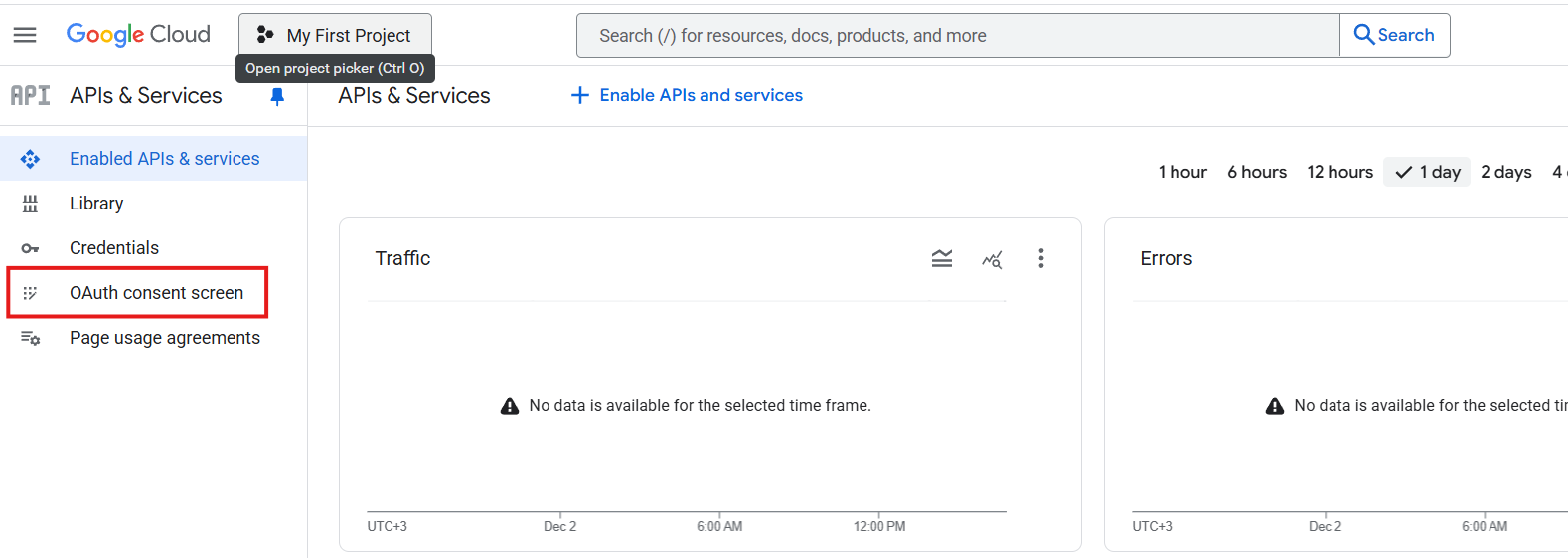
5. Open the OAuth consent screen section in the left menu
6. If it is not configured yet (the Get started button will be displayed), then you need to configure:
In app information, specify the name of our program – 4logist and.
enter the one that will be integrated with it. Next, in Audience, select External.
Contact Information – you can specify any email addresses that you have access.
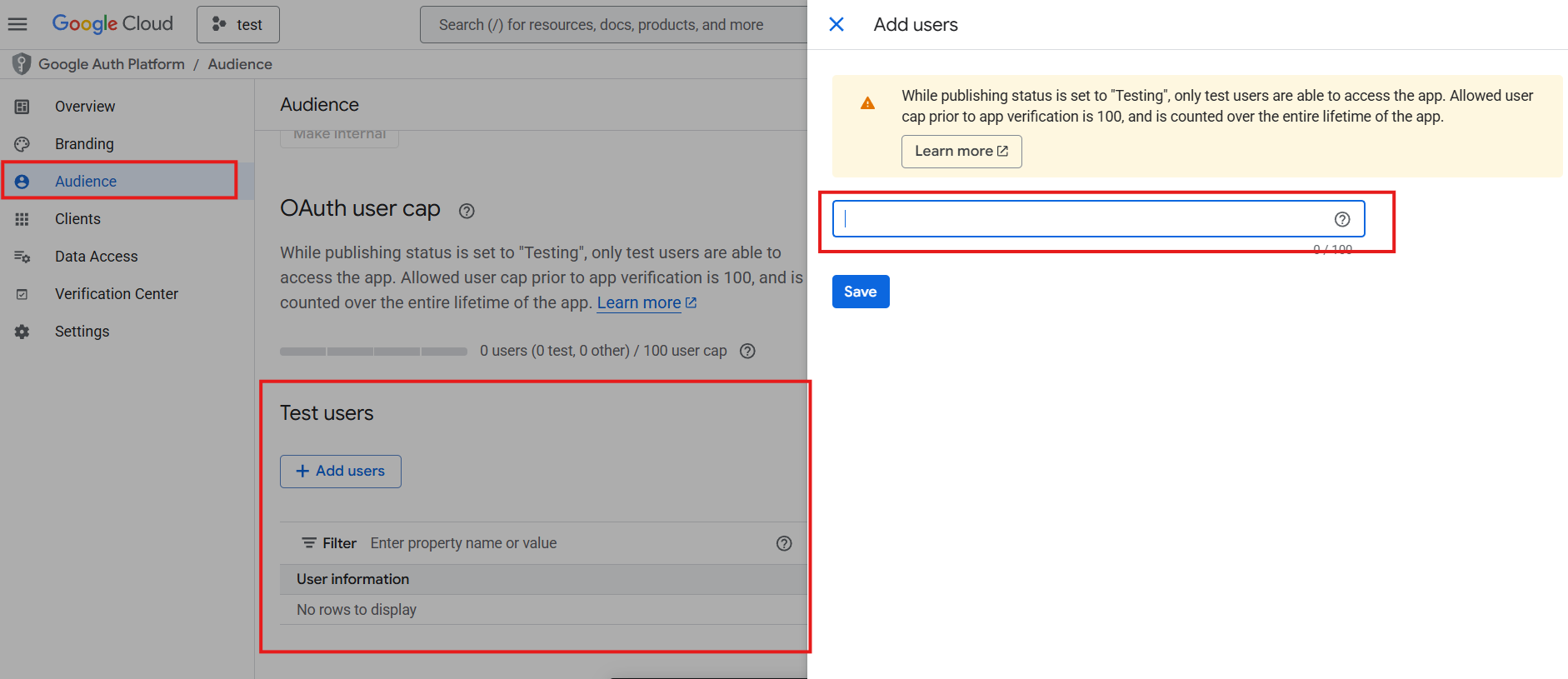
to 7. Next, open Audience in the left menu and add your email to Test users
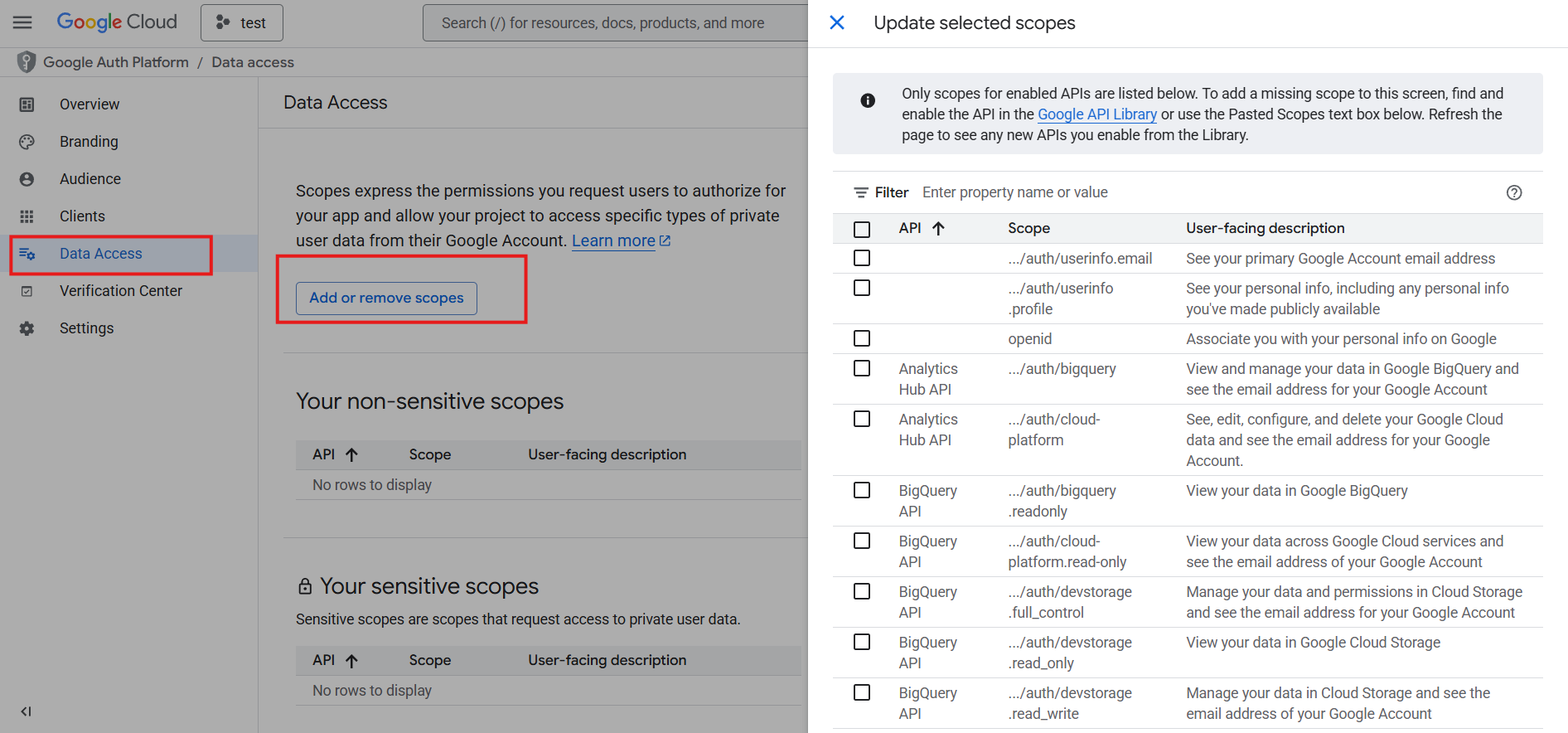
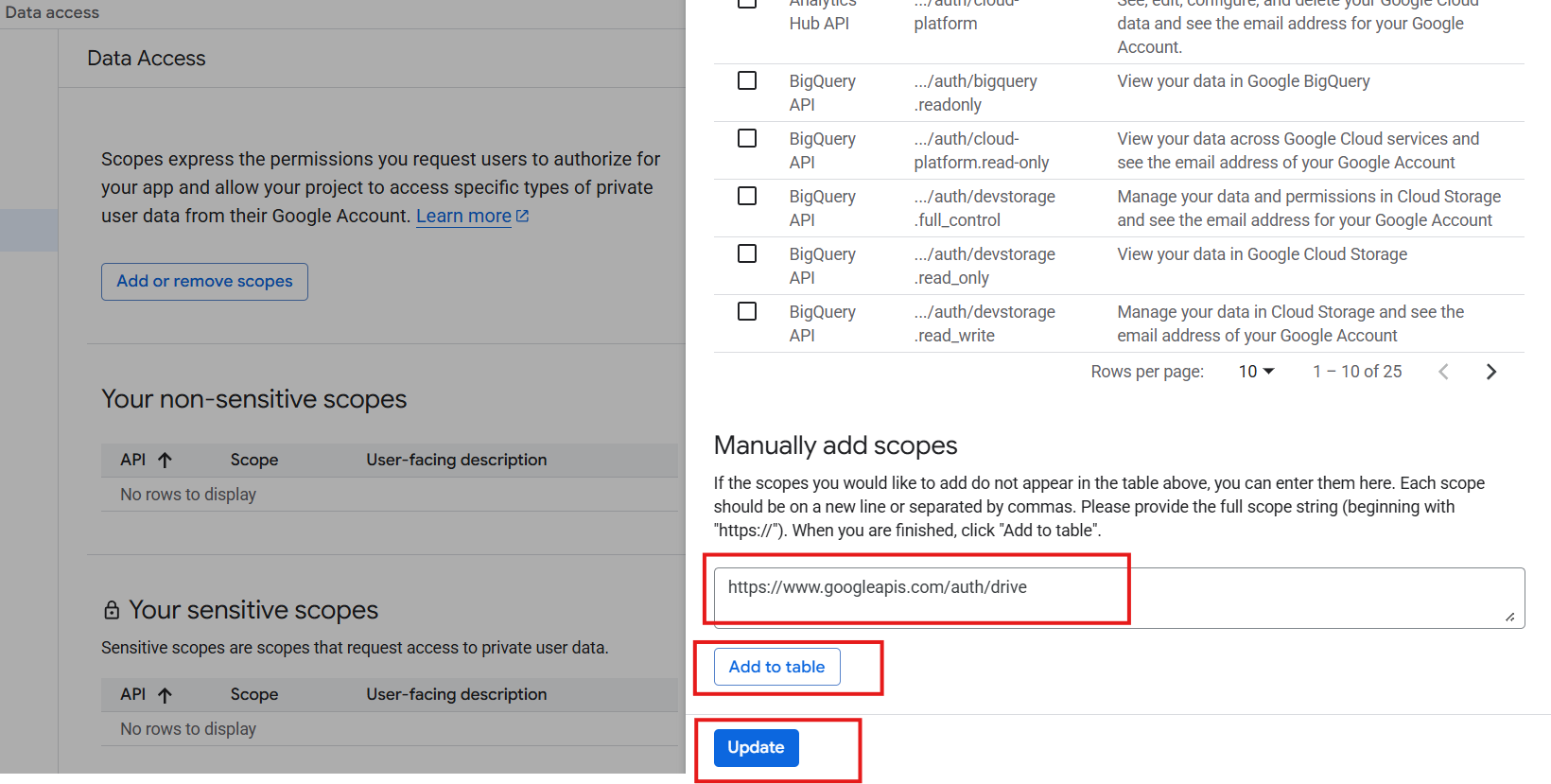
8. Then open Data Access and register in scopes https://www.googleapis.com/auth/drive
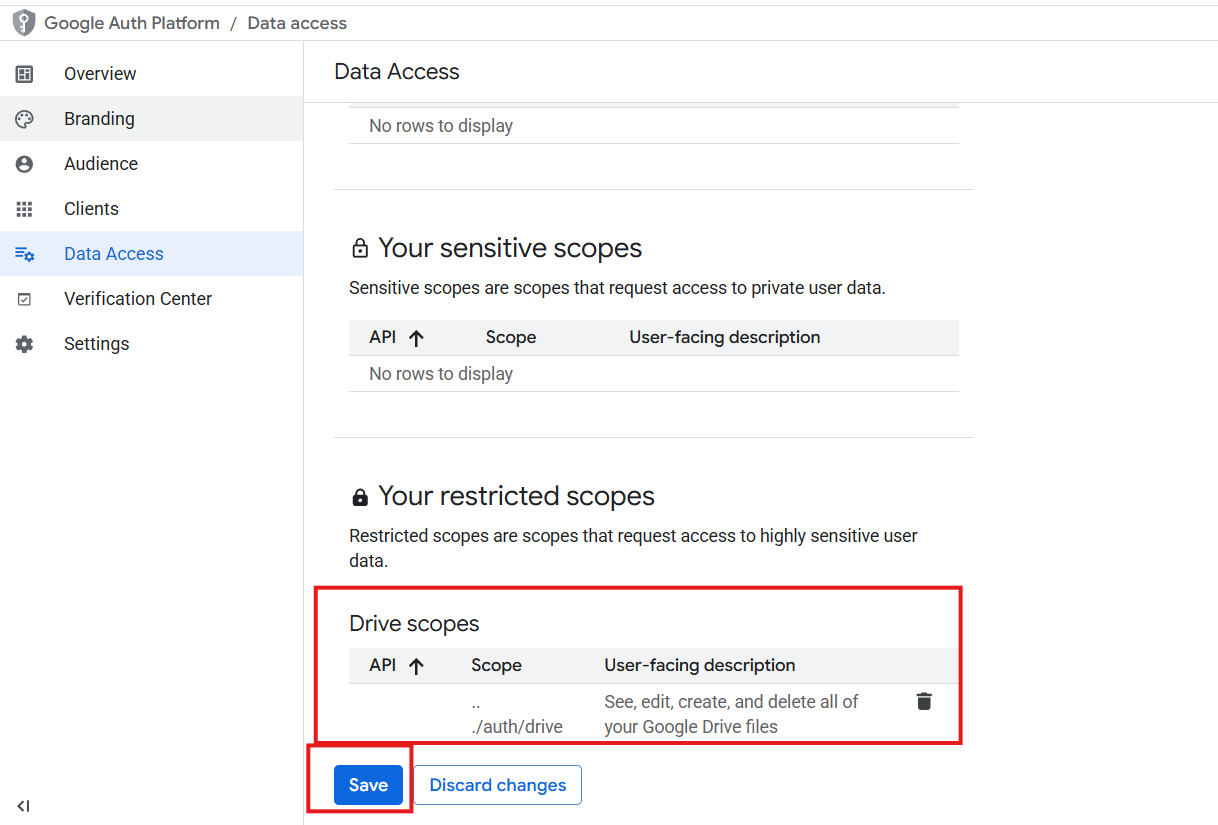
9. Your link will appear below on the page in Drive scopes. You must save your settings.
10. Creating a Client ID:
- 10.1 Returning to the Google Cloud start page
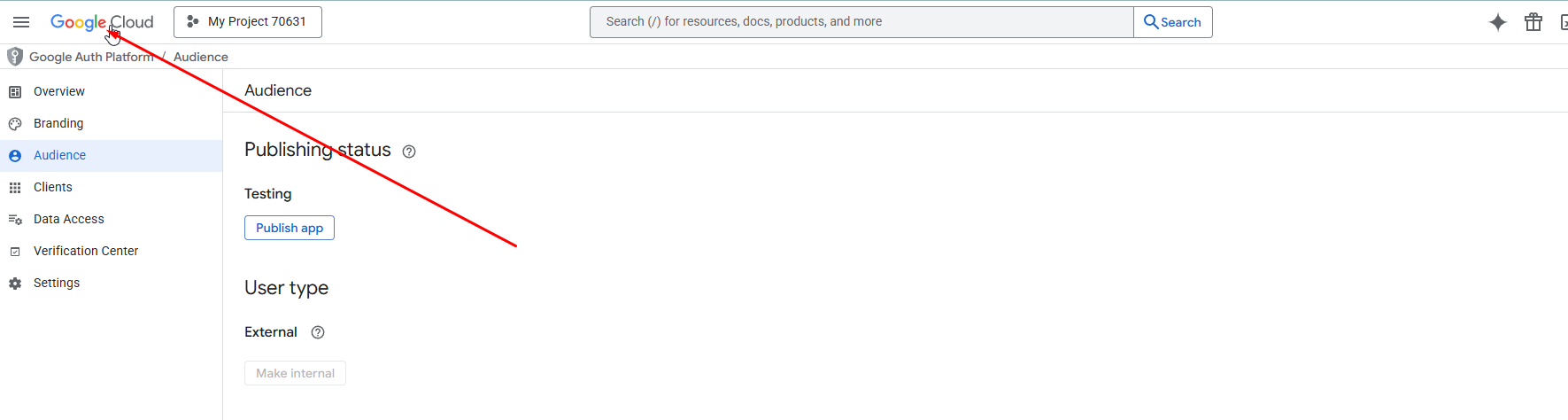
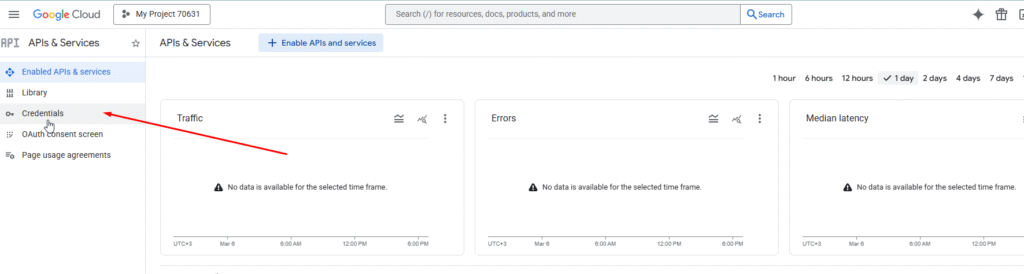
- 10.2 Go to API’s & Services
- 10.3 In the left sidebar, go to the Credentials section
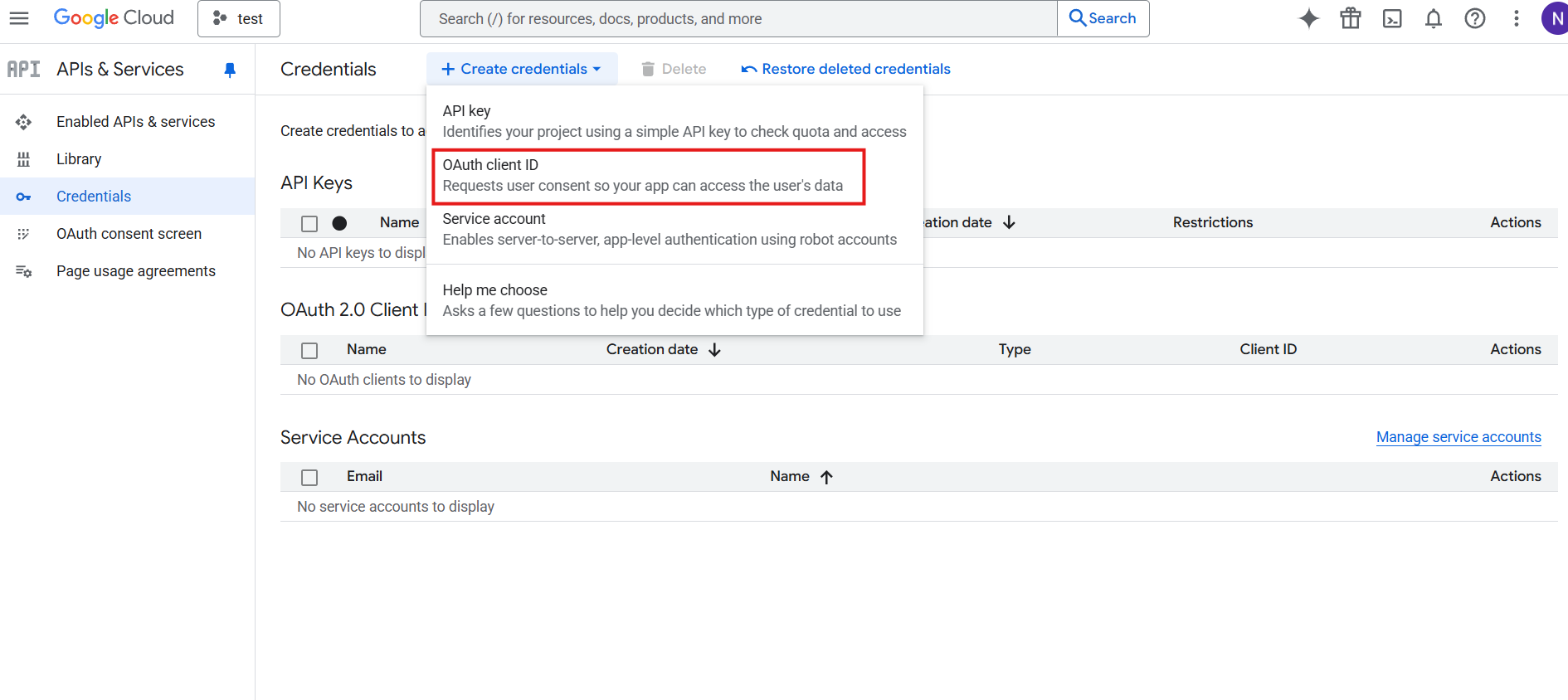
- 10.4 Creating an OAuth client ID
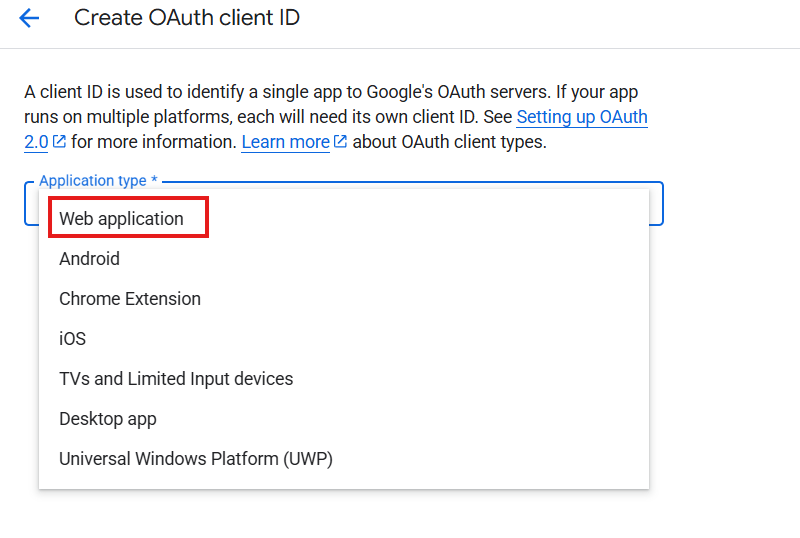
10.5 Type of Web application client. Any name
10.6 Authorized redirect URIs
Next, go to the 4logist database, copy the link in the address bar
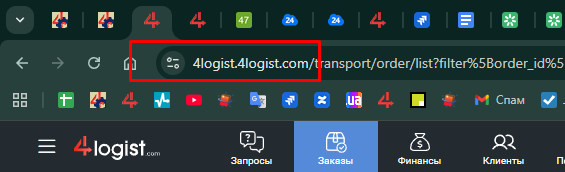
For example:
if the address is in the line https://gavtadze.4logist.com/transport/order/list
all chat before .com needs to be deleted and add /google / oauth/callback
then the link will be https://gavtadze.4logist.com/google/oauth/callback
Insert in Authorized redirect URIs:
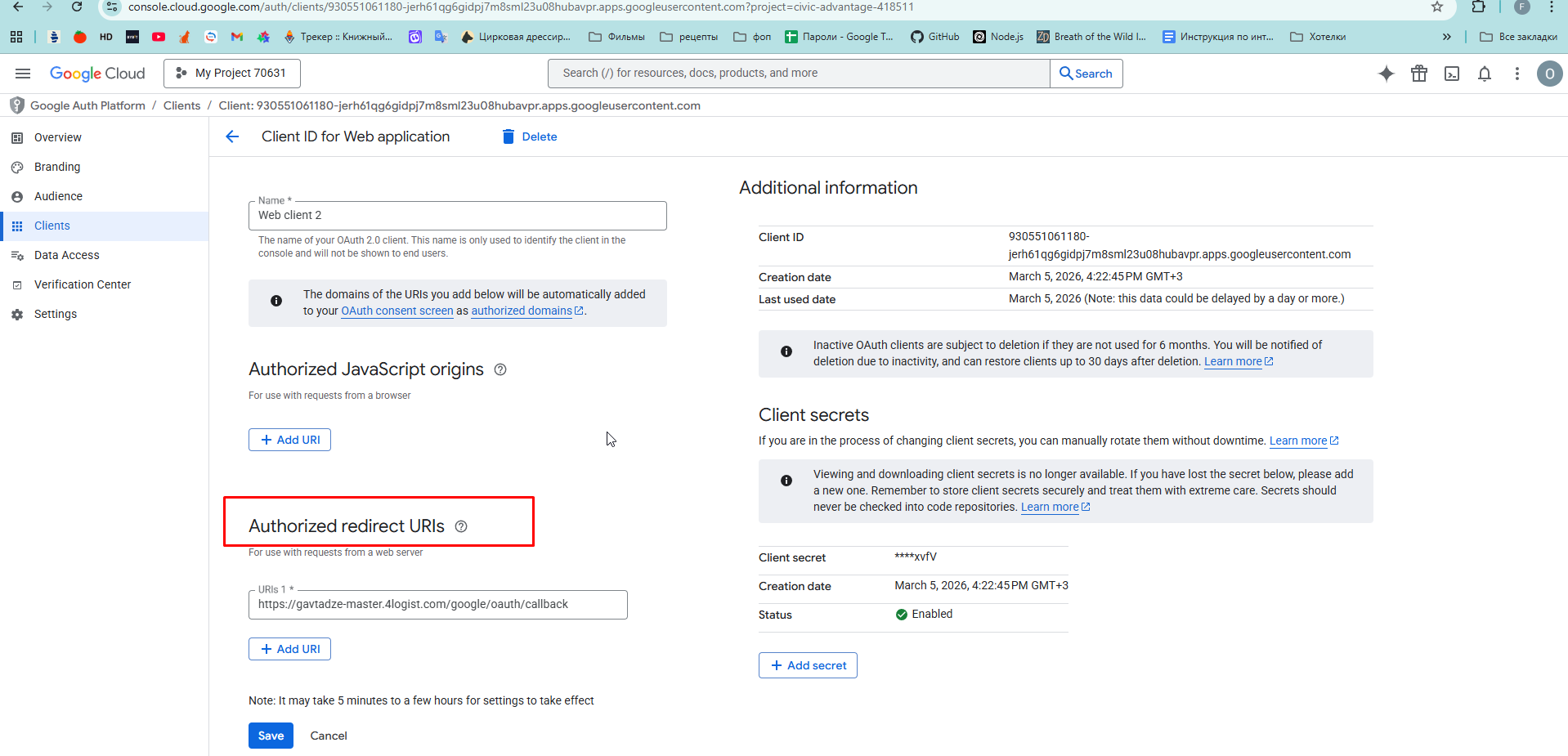
11. After we have received the client_id and client_secret, we pass them along with the email address to the 4logist employee who will perform the integration.
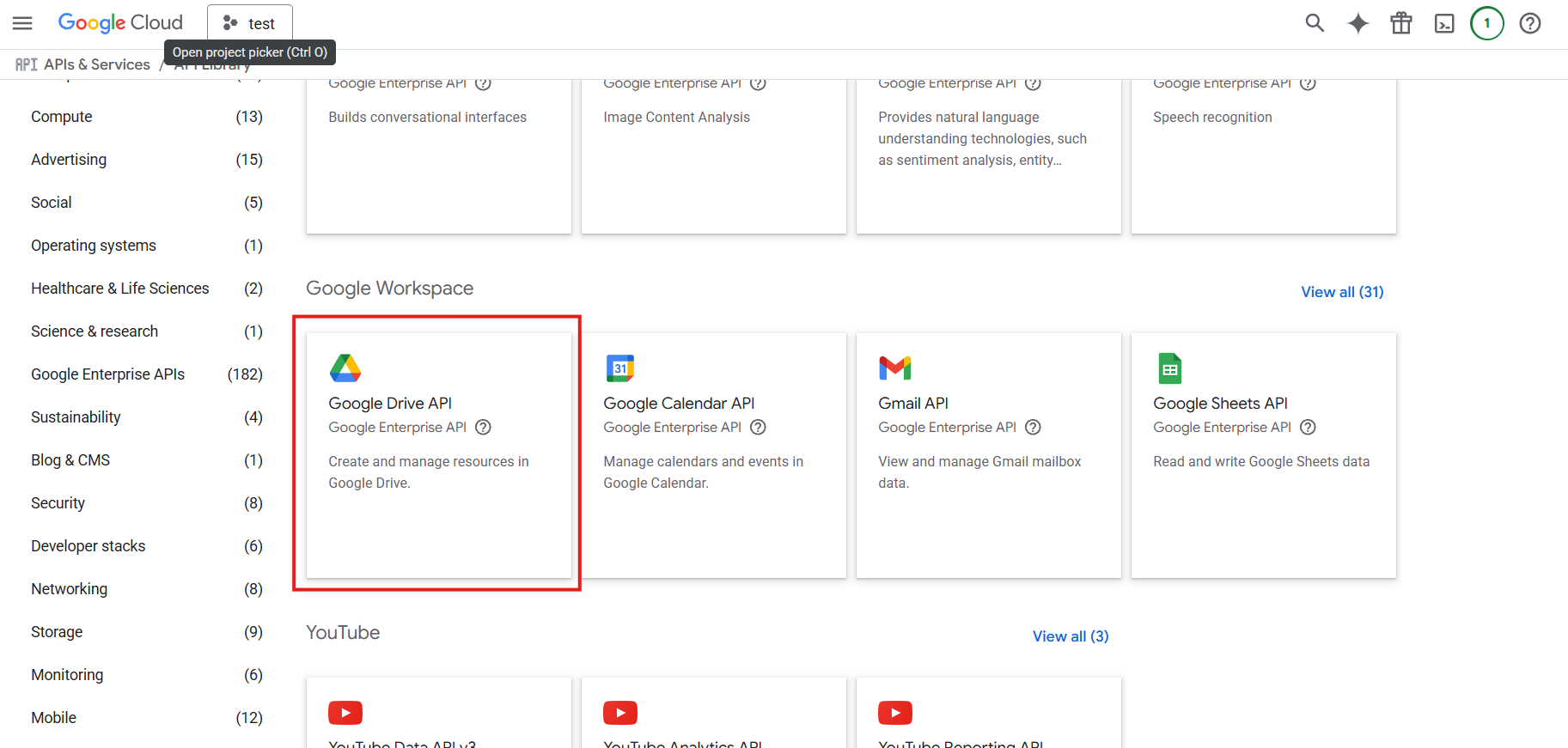
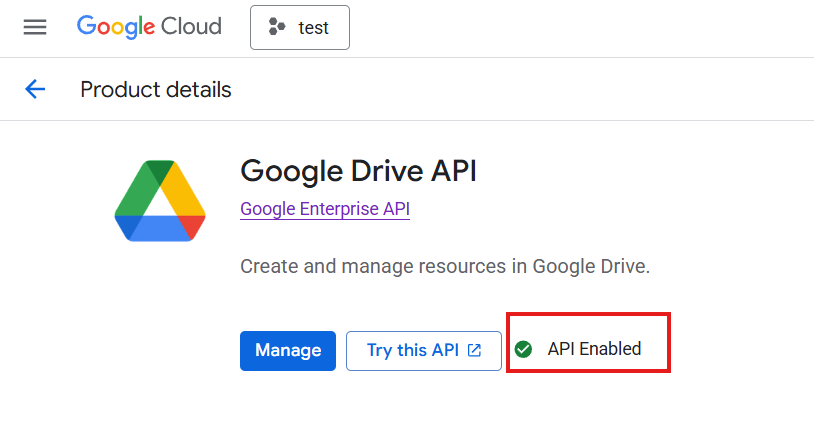
12. Find the Google Drive API and enable the API for it
13. Enter the email address for which we are performing integration in the employee’s card
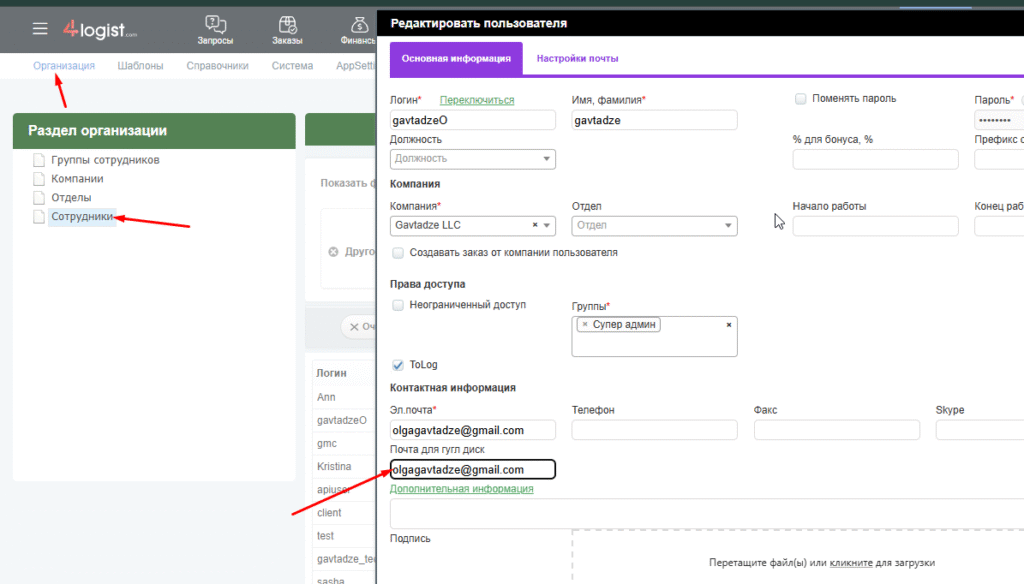
13. Next, you need to create a link to get the token:
Нужно взять текст нижеhttps://accounts.google.com/o/oauth2/v2/auth?client_id=**************&redirect_uri=**********************&response_type=code&scope=https%3A%2F%2Fwww.googleapis.com%2Fauth%2Fdrive&access_type=offline&include_granted_scopes=true&prompt=consent
Instead of asterisks enter the previously received data client_id and redirect_uri
Example before deleting spaces:
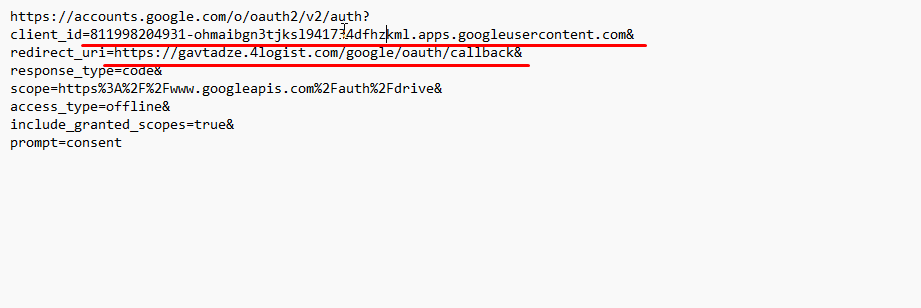
we leave the characters before and after, replace ONLY asterisks
, Then remove all spaces (put the cursor at the beginning of the line and delete the space 1 time)
the result is a link like this:
13. You need to insert it in the address bar and go to. Google will ask you to log in. You need to log in via the email address that we are configuring integration for
14. Find your project in the console and click Enabled API’s & Services
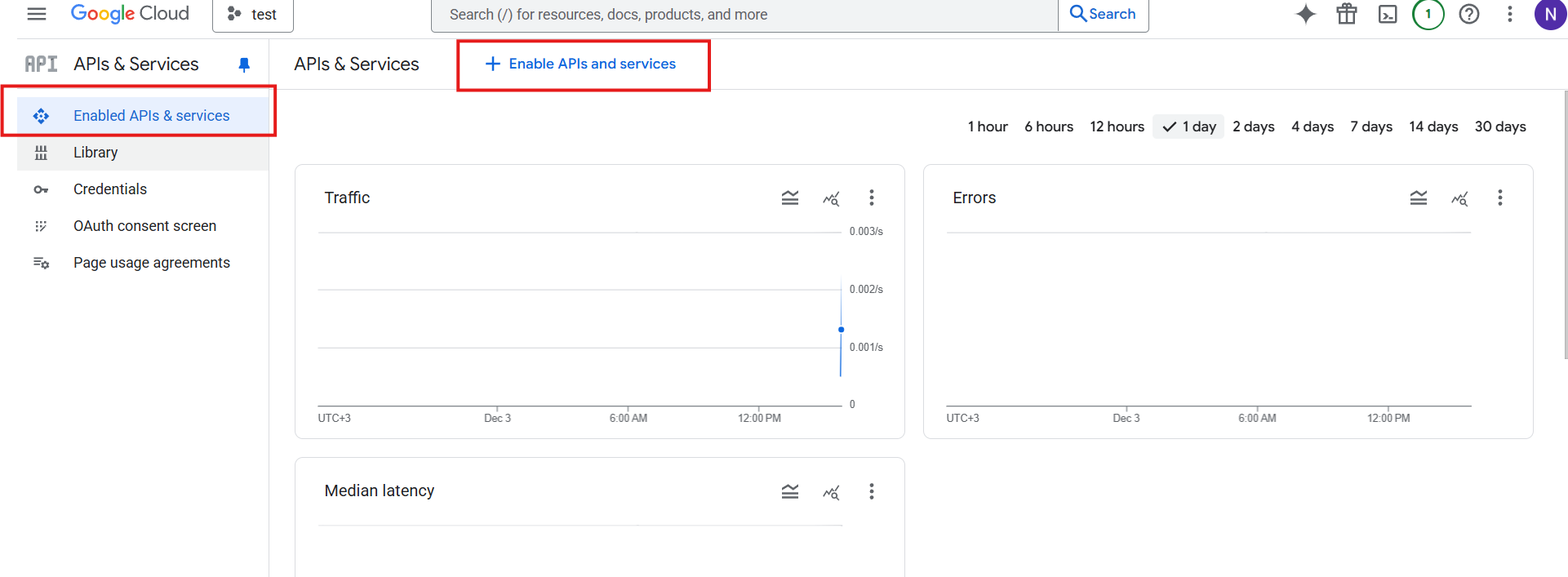
16. Enter the email address for which we are performing integration in the employee’s card
If everything is done correctly, the technical support employee will notify you within 1-2 business days that the integration is configured and ready to work 
Was this helpful?
0 / 0