In order for technical support staff to configure integration with your Google Disk, you need to generate the key and get the service account ID
This can only be done by the client, since they have access to their google account settings.
Instructions for getting the key
Follow the link: https://developers.google.com/workspace/drive/api/guides/enable-sdk and Enable API
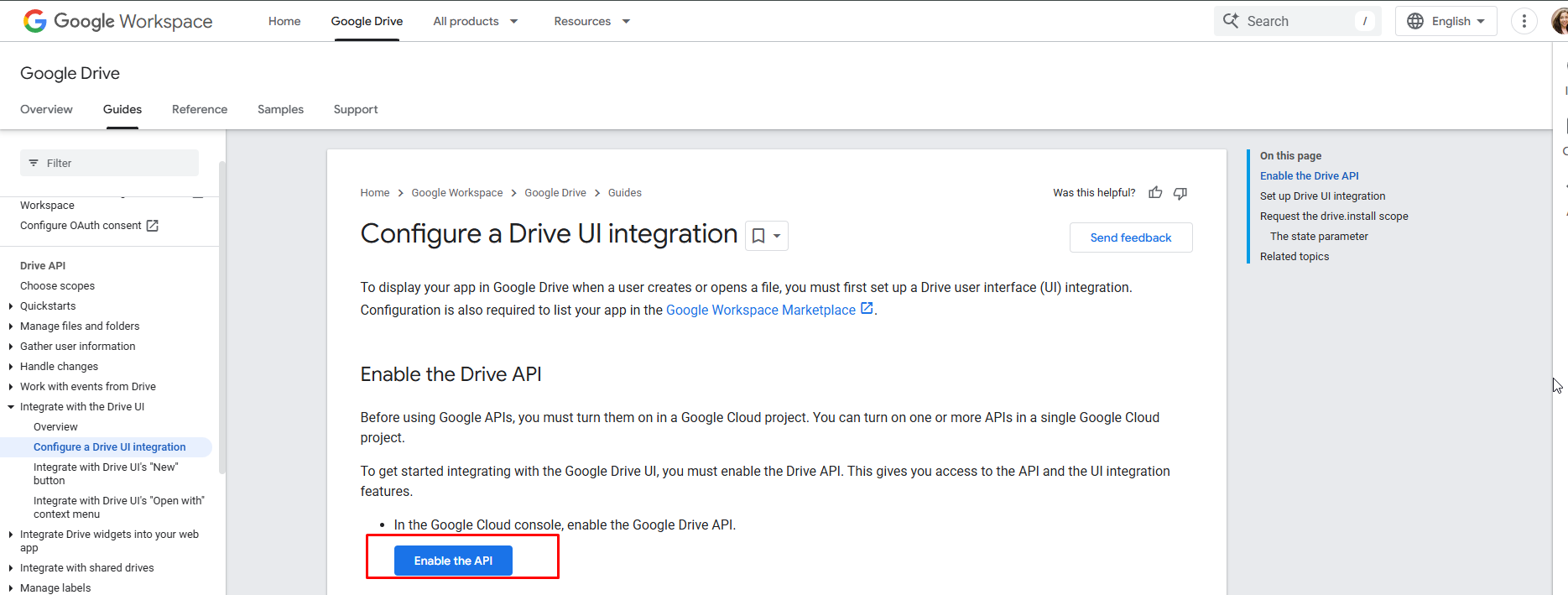
Next, you need to create a new project (click CREATE PROJECT):

Fill in the project name and click CREATE + NEXT + ENABLE:



Go to Credentials:

Click + create credentials and Service account:

Enter the account name:

Refresh the page and go to a new account:

Then select KEYS-Add key – Create new key

Select the json format

After that, the download of the key file will start. Please send file to tech support: help@andrei
Steps to get your Drive ID:
Steps to get your Drive ID:
- Log in to Google Drive using your corporate Google Workspace account.
- In the left panel, find the “Shared drives” section. IMPORTANT: if this section is missing, your account does not support Shared Drives.
- Open the newly created shared drive. In the browser address bar you will see a link like: https://drive.google.com/drive/folders/AAAASSSDDDDASS-SDFF?…
- AAAASSSDDDDASS-SDFF — this is your Drive ID.
- Copy this ID and provide it wherever the system or your administrator asks for it.
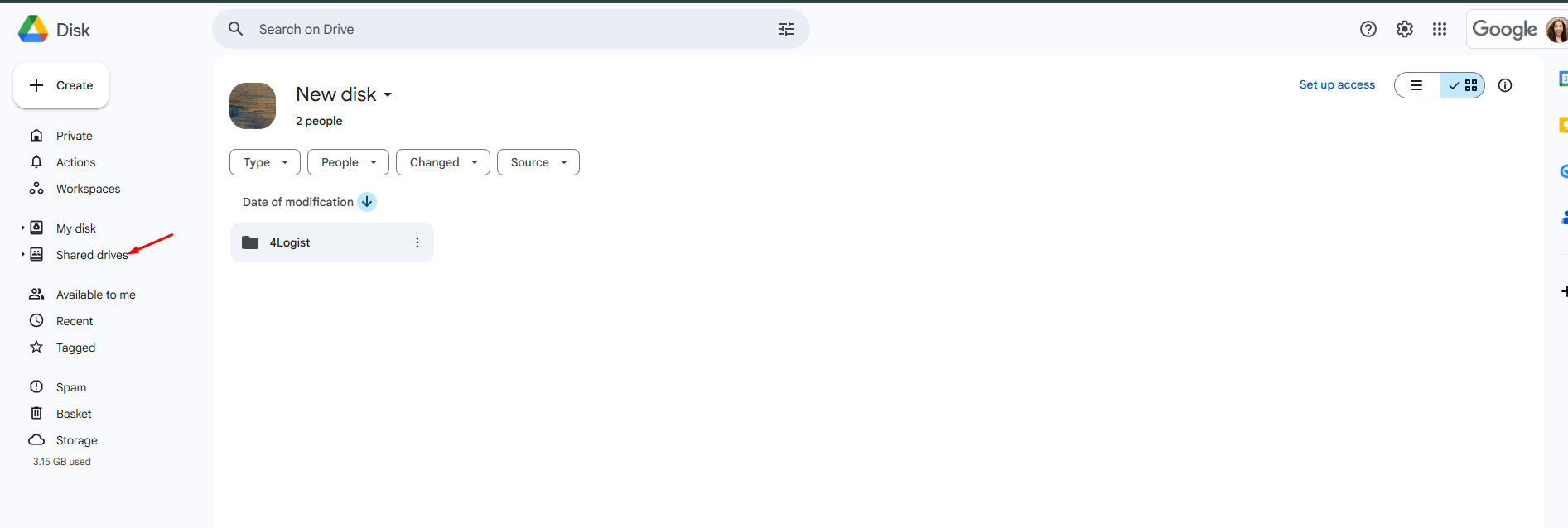
3. Create a new shared drive for storing documents.
- Right-click on “Shared drives” or on empty space within the section.Select “Create shared drive” and enter a name.
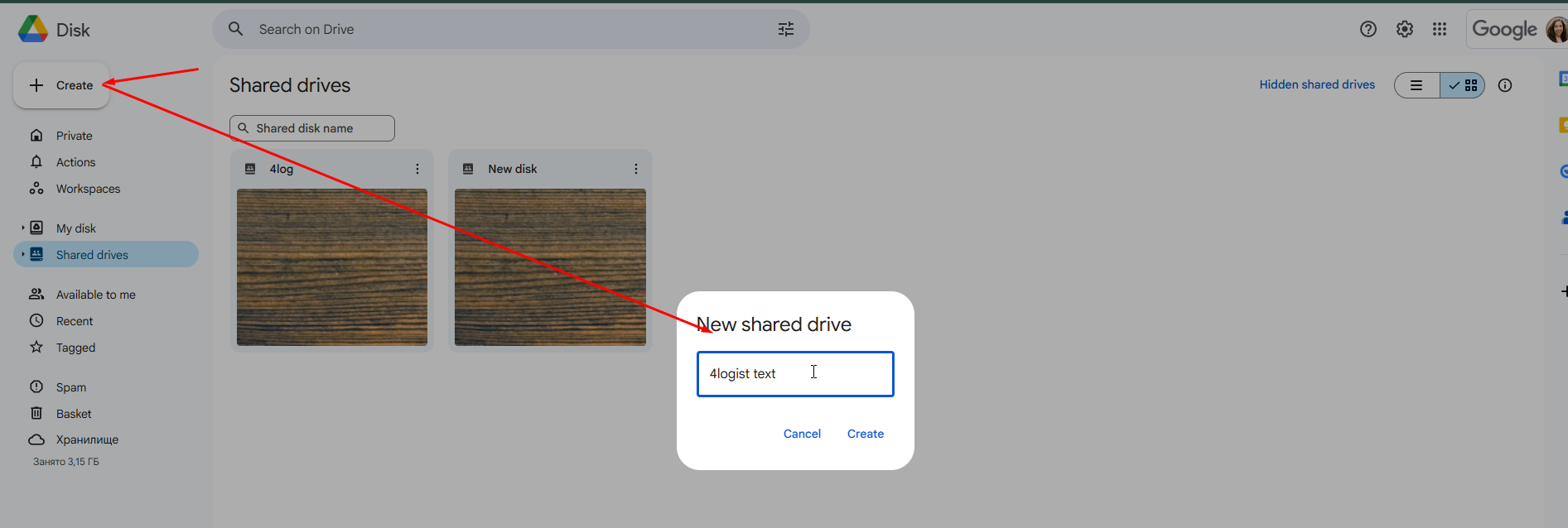
- Open the newly created shared drive. In the browser address bar you will see a link like: https://drive.google.com/drive/folders/AAAASSSDDDDASS-SDFF?…
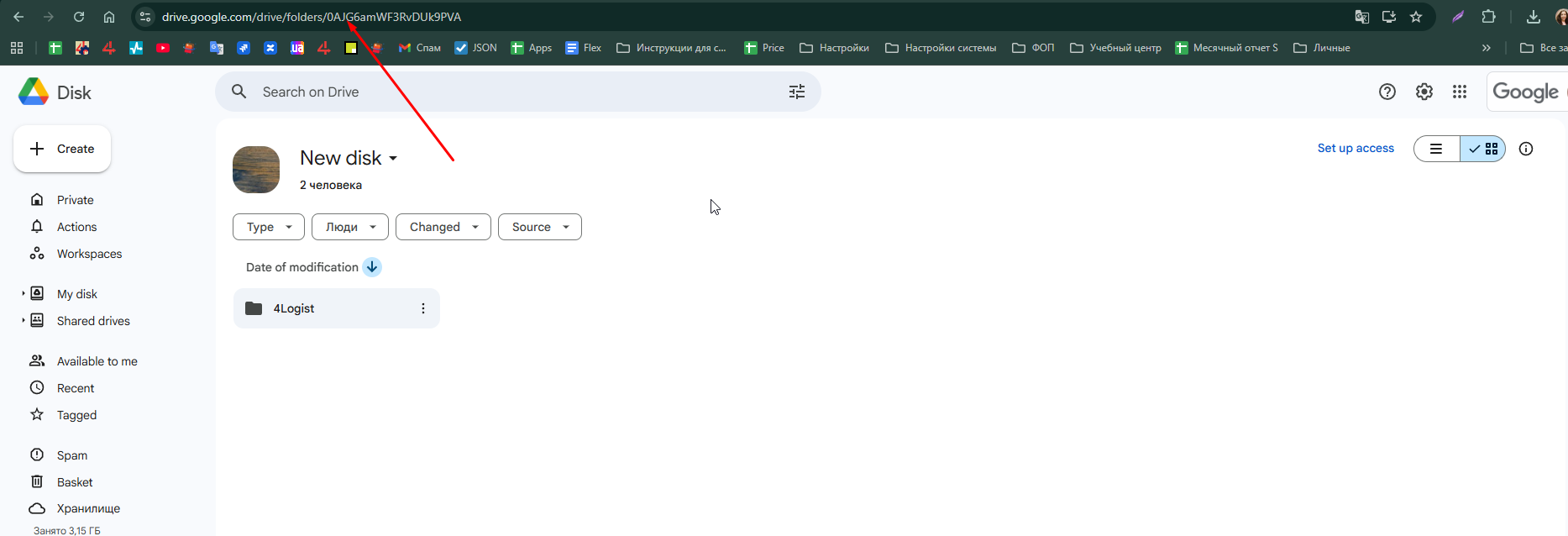
AAAASSSDDDDASS-SDFF — this is your Drive ID.
Copy this ID and provide it 4logist tech support.
Was this helpful?
0 / 0